7 Free YouTube Banner Makers (2026), Templates and AI
By ThumbnailMaker Team · · 19 min read
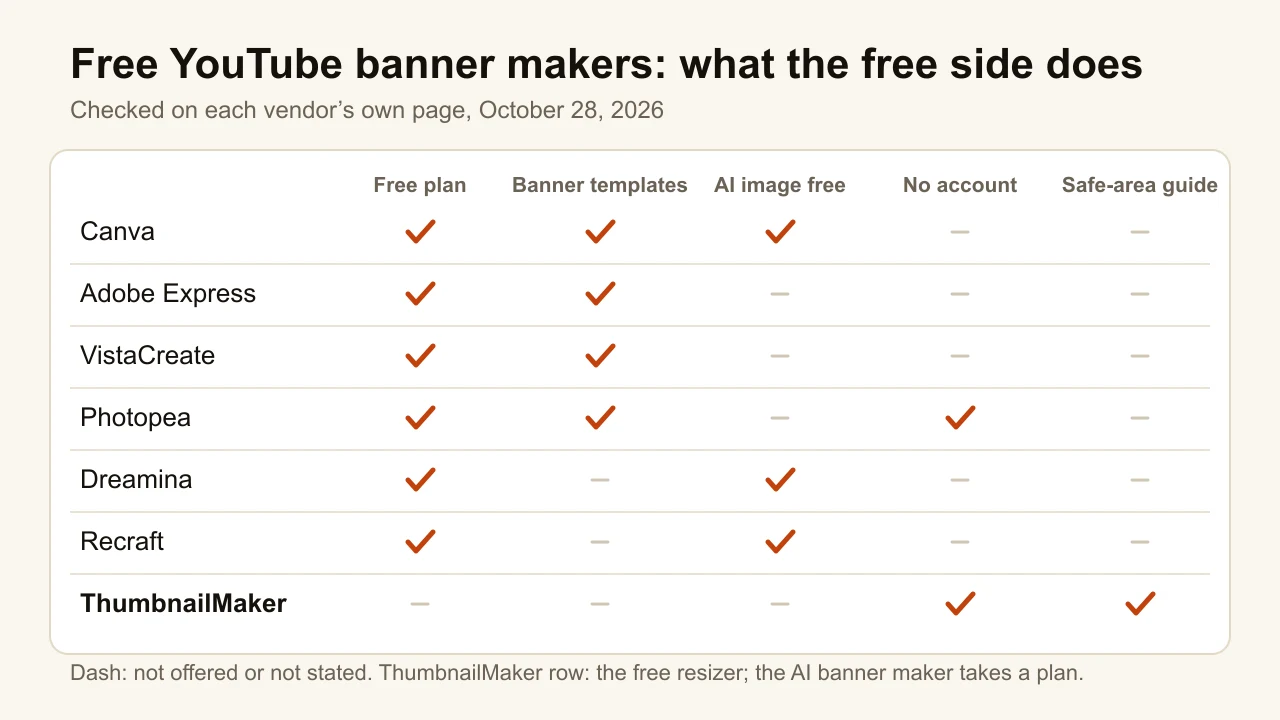
Quick answer: the best free YouTube banner maker for most channels is Canva: its free plan has banner templates already sized at 2560 × 1440, 1.6 million templates in all and 20 AI uses. Adobe Express is the closest second, with 100,000+ templates and 4,000+ fonts on its free plan. Photopea is the pick if you want no account at all: a free browser editor that opens community PSD banner templates. VistaCreate's free plan adds 100,000 templates and watermark-free design objects. For an AI banner from a prompt, Dreamina gives free daily credits and exports 16:9 at 2K or 4K; Recraft is free too, but its free images belong to Recraft and can't be used commercially. ThumbnailMaker's banner maker is not free. Its free YouTube banner resizer is: it fits any image to 2560 × 1440 with the safe area drawn on top. Every claim here was checked on the vendor's own page on October 28, 2026.
If you would rather not design it at all, ThumbnailMaker's YouTube banner maker builds the banner from your channel's link, with the name set inside the safe area, on a plan from $12 a month.
A banner is made once and seen by every visitor, and free tools can make a good one. The catch is rarely the price. It is the safe area: YouTube shows the whole 2560 × 1440 image on a TV, but a phone keeps only the centred 1546 × 423 strip, and none of the template tools below draws that strip for you. Our YouTube banner size guide has the numbers from YouTube Help.
ThumbnailMaker is our product, and its banner maker is paid, so it sits last on a list of free tools. Its free resizer is listed for what it does.
What kinds of free YouTube banner makers are there?
The seven tools fall into three families:
- Template editors: Canva, Adobe Express and VistaCreate. You pick a banner template, change the words and colours, and download. Each needs a free account.
- A browser editor with no account: Photopea. A layered editor in the style of Photoshop, with a library of banner PSDs that other users uploaded.
- AI generators: Dreamina and Recraft, which paint the banner from a prompt, and ThumbnailMaker, which writes the prompt from your channel and sets your name in code. The first two have free daily credits; ThumbnailMaker's banner maker takes a plan.
| Tool | Best for | Free option | The catch | Cheapest paid plan |
|---|---|---|---|---|
| Canva | Templates you edit in minutes | Free plan, 20 AI uses | Its FAQ still says 4 MB; YouTube allows 6 | Pro US$144/yr |
| Adobe Express | Free templates with Adobe Fonts | Free plan, no card | Free AI allowance not stated | Premium US$9.99/mo |
| Photopea | No account at all | The whole editor, with ads | Community templates, uneven quality | Premium removes ads |
| VistaCreate | Watermark-free design objects | Starter plan, 100K templates | HD download listed as a Pro feature | Pro $120/yr |
| Dreamina | An AI banner from a prompt | Free daily credits | Daily allowance not published | Not listed on the page |
| Recraft | Illustrated and vector styles | Free daily credits | Free images belong to Recraft | Basic $12/mo |
| ThumbnailMaker | A finished banner from your channel link, name inside the safe area | Free banner resizer and size guide | The banner maker needs a plan | From $12/mo (10 credits a banner) |
1. Canva, best for templates you edit in minutes
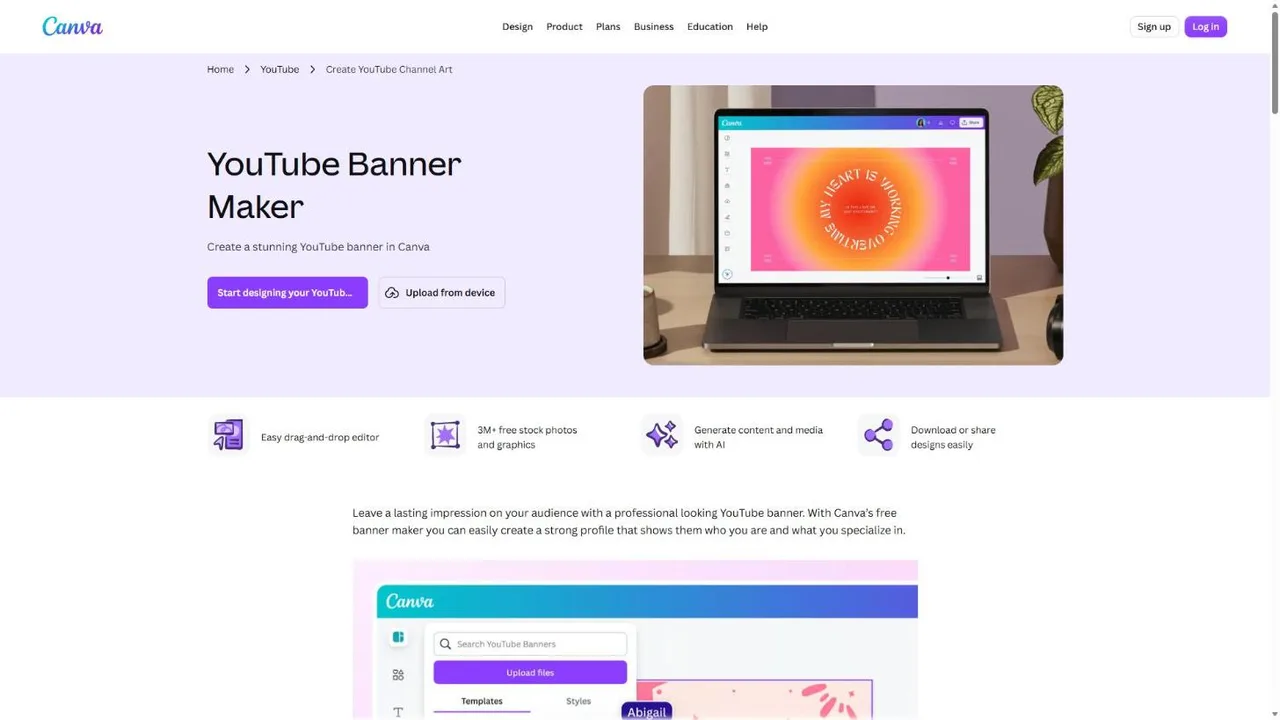
Canva is the default answer to "free YouTube banner maker" for a reason: open its banner page, pick a template, and the canvas is already 2560 × 1440. Canva's page says every banner template is made to fit YouTube's requirements, so the size is never the problem. You change the name and the photo, and download. The free plan includes 1.6 million templates across every format, 5 GB of storage and up to 20 AI uses; the banner page marks Magic Media, Canva's text-to-image tool, as free. The background eraser and Magic Expand are marked Pro. You need a free account to start.
Key features
- Banner templates at 2560 × 1440
- Free stock photos, graphics and fonts in the editor
- Magic Media text-to-image on the free plan
- Thumbnails and logos in the same account
Best for
- A new channel that wants a clean banner tonight
- Creators who already make their thumbnails in Canva
Pricing
- Free plan: 1.6M+ templates, 5 GB, up to 20 AI uses
- Pro: US$144 a year for one person, 3.6M+ templates and ten times the AI
Pros
- The largest template library here
- The size is right before you touch anything
Cons
- No safe-area guide on the canvas: a long name near the edge disappears on a phone
- The banner page's FAQ gives 4 MB as the limit; YouTube's own page says 6 MB, so it is only stricter than needed
The Canva alternative page compares the two for thumbnails.
2. Adobe Express, best for free templates with Adobe Fonts
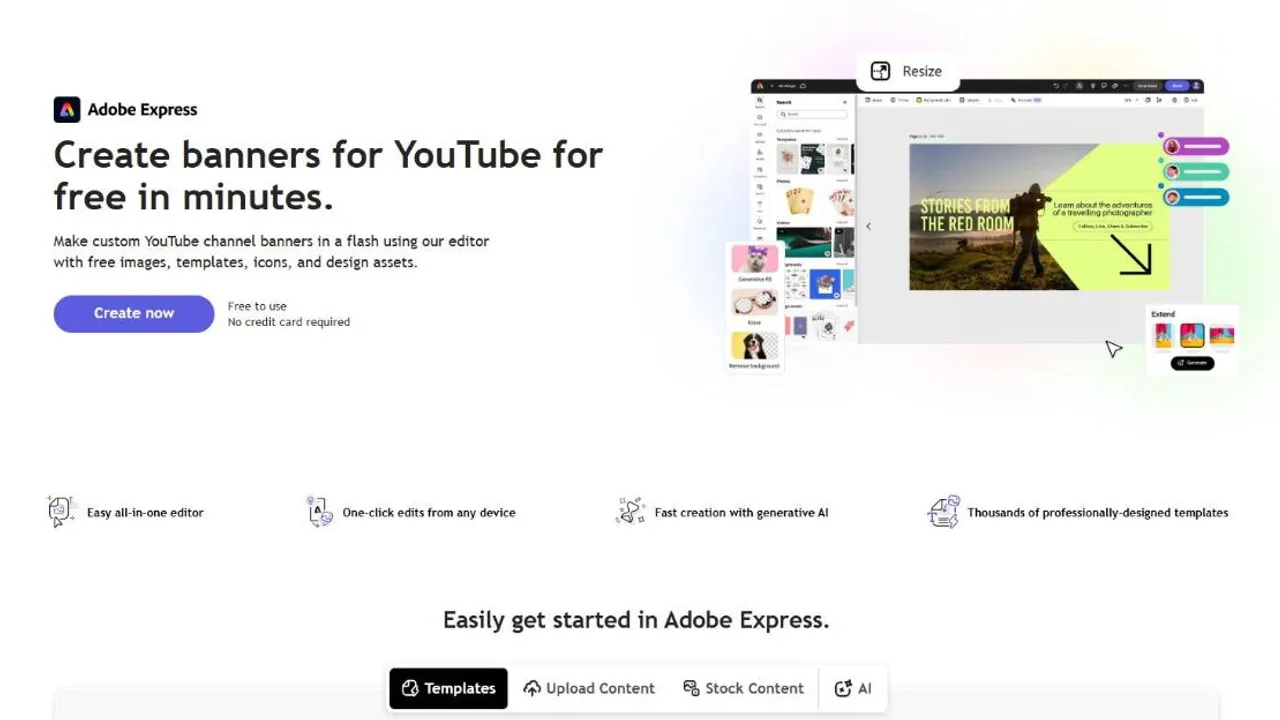
Adobe Express runs the same play as Canva with Adobe's assets behind it. The banner page says it plainly: free to use, no credit card required, thousands of banner templates, and generative AI in the editor. The free plan is generous on fonts, which matters on a banner that shrinks to a phone strip: 4,000+ Adobe Fonts, plus 100,000+ templates and over a million Adobe Stock photos and design elements. Premium, at US$9.99 a month, adds 250 generative credits a month and the full 30,000-font collection. The free plan card doesn't say how much generative AI it includes.
Key features
- Thousands of YouTube banner templates
- 4,000+ Adobe Fonts on the free plan
- Adobe Stock photos and design elements
- Resize and generative tools in the editor
Best for
- Channels that care about type and want more than the usual ten fonts
- Creators already paying for Adobe apps
Pricing
- Free plan, no credit card: 100,000+ templates, 5 GB of storage
- Premium US$9.99/mo with 250 generative credits, 30-day free trial
Pros
- The best free font selection on this list
- No card asked to start
Cons
- No safe-area guide stated on the banner page
- The free plan's generative AI allowance isn't published on the plan card
The ThumbnailMaker vs Adobe Express page compares the two for thumbnails.
3. Photopea, best for no account at all
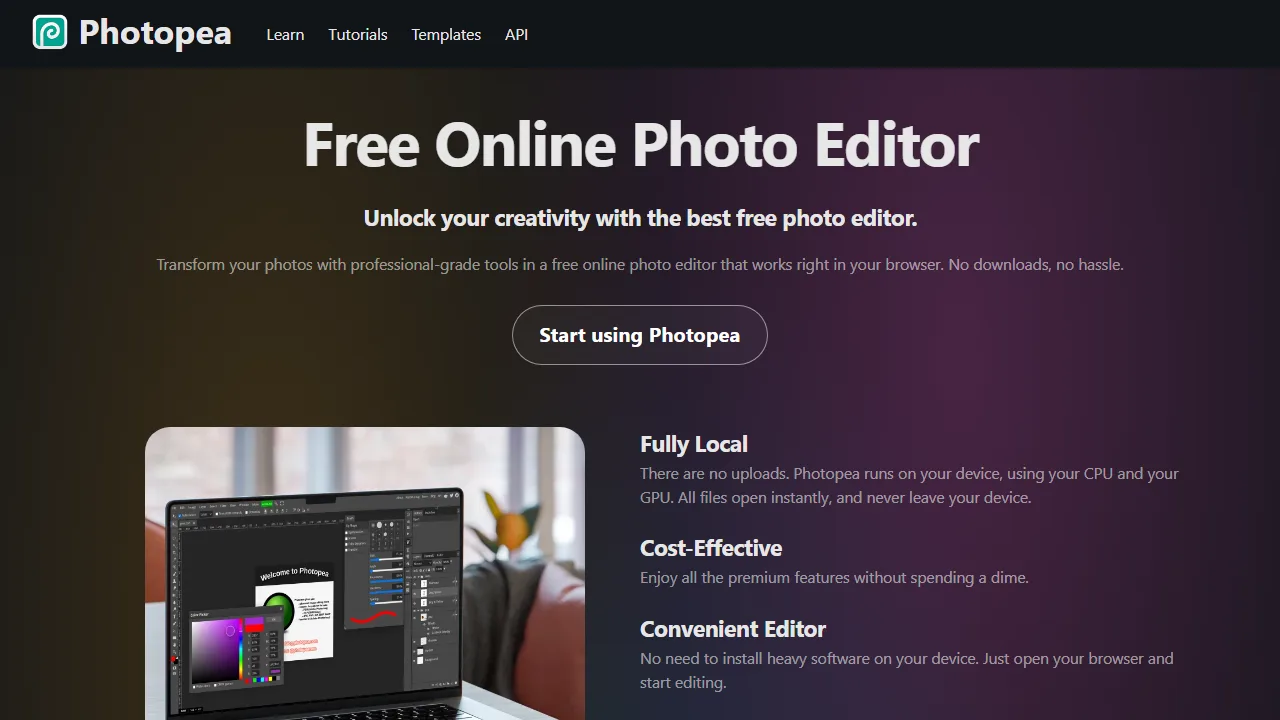
Photopea is the only tool here you can use without creating an account. It is a layered editor in the browser, close to Photoshop, and it opens and saves PSD files. Files never leave your machine: the homepage says Photopea runs on your own CPU and GPU, with no uploads. Its template library has a YouTube category with 325 community templates on the day we checked, banners among them, including a blank "YouTube banner sizes" file. Other users made them, so quality varies. Ads pay for it; a Premium account removes them.
Key features
- Layers, masks, text and filters
- Opens and saves PSD
- Community banner templates in the YouTube category
- Runs locally: nothing is uploaded
Best for
- Anyone who refuses to make another account for a one-off banner
- Editing a banner PSD a designer sent you
Pricing
- Free, with ads
- Premium removes the ads; Photopea shows the price inside the app
Pros
- No account, no email, no watermark step
- The most control over every layer
Cons
- A blank canvas is slow if you don't already know Photoshop
- Community templates vary a lot, and none is official
4. VistaCreate, best for watermark-free design objects
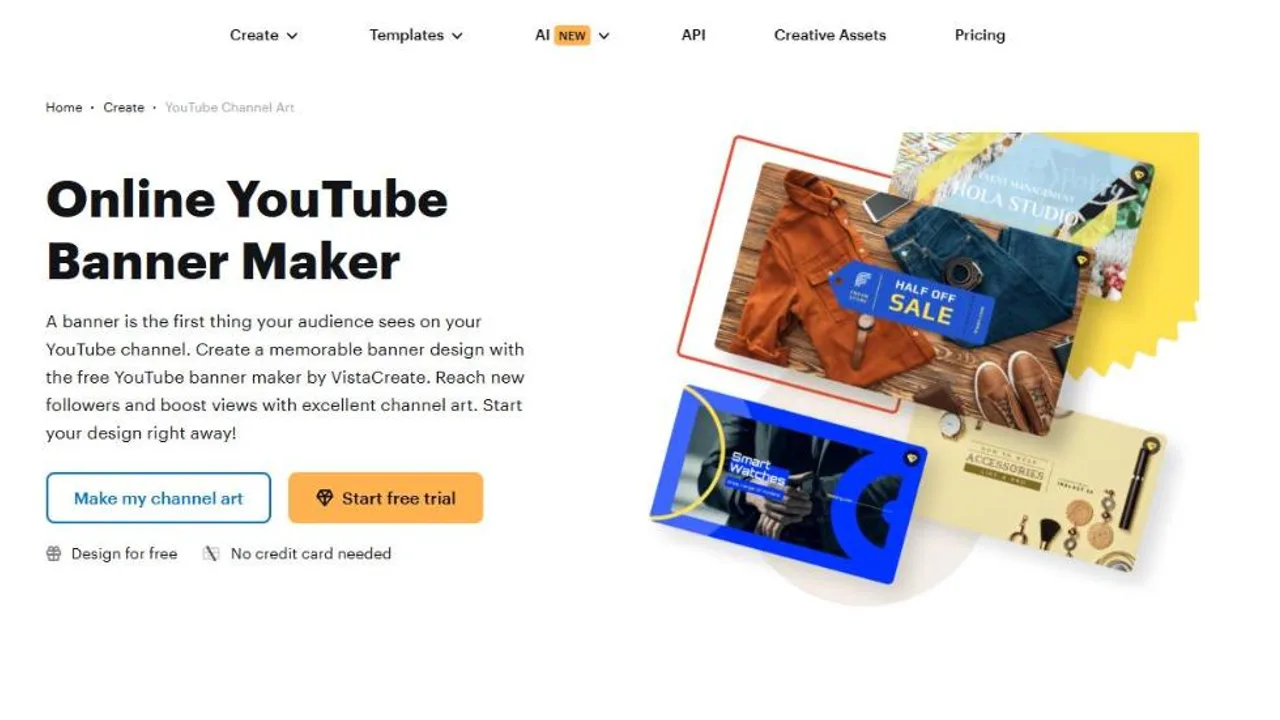
VistaCreate is a template editor with a dedicated YouTube banner page and a free Starter plan. Starter gives one seat, 100,000 templates, a million photos, videos and vectors, one brand kit and 10 GB of storage. The banner page promises 53,000+ design objects, frames, stickers, icons and illustrations, that you can add without watermarks, which is the thing free design tools usually charge for. You make an account to save your work. One line on the plans page deserves attention before you design: HD download is listed among the Pro features. Check the size your free export comes out at before you upload it.
Key features
- A dedicated YouTube banner template set
- 53,000+ design objects with no watermarks
- 100,000 templates and 1 million assets on Starter
- One-click resizer on Pro
Best for
- Small businesses with a YouTube channel and a brand kit to apply
- A banner that needs stickers and illustrations rather than a photo
Pricing
- Starter: $0, one seat, 100K templates, 10 GB
- Pro: $120 a year billed upfront after a 14-day free trial, up to 10 seats
Pros
- Watermark-free objects, stated on the banner page
- A clear free plan with its limits in one table
Cons
- HD download sits on the Pro list; the free export size is not stated
- The AI tools are listed under Pro
5. Dreamina, best for an AI banner from a prompt
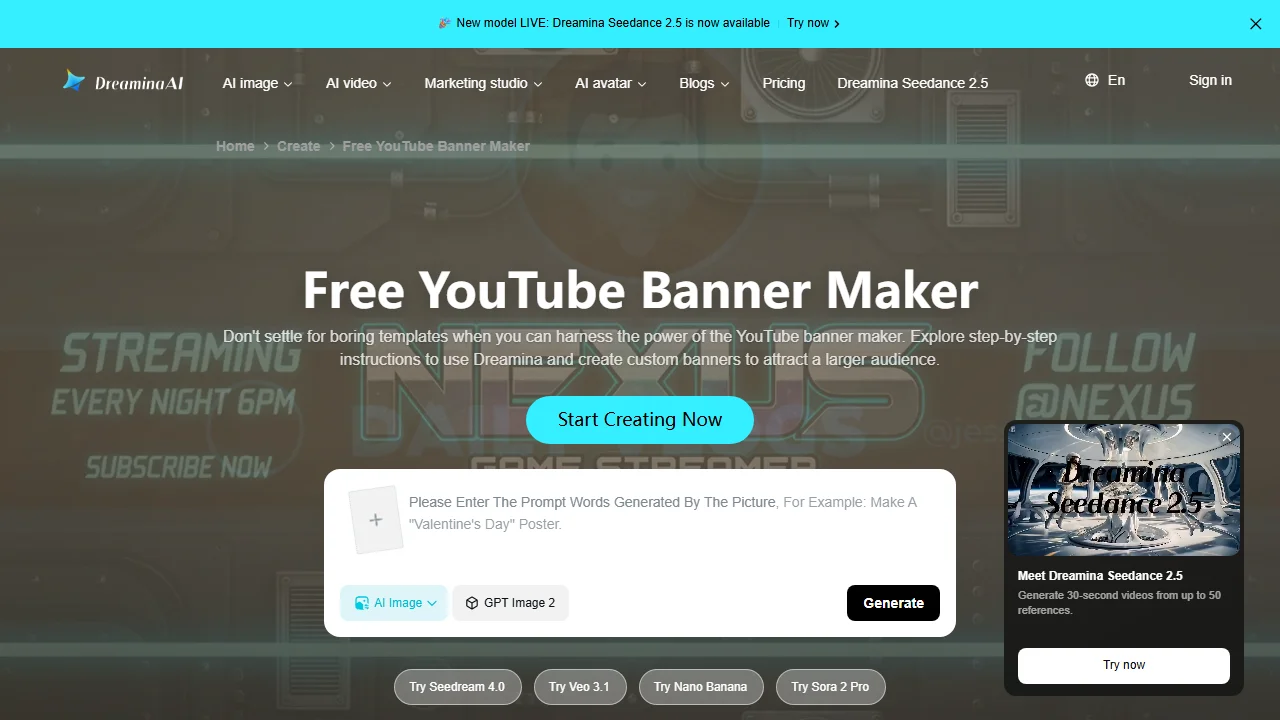
Dreamina is CapCut's AI image tool, and its banner page is built around a prompt rather than a template. You sign in, write what the banner should show, set 16:9 and 2K or 4K, and Dreamina returns four variations from its Seedream 5.0 model. It can also start from your logo or a photo, and AI Expand widens an image that is the wrong shape. The page says Dreamina gives free credits daily to all users; it doesn't say how many. Nothing on the page mentions YouTube's safe area, so the name's position is up to you.
Key features
- Text-to-image and image-to-image
- 16:9 at 2K or 4K
- Four variations per prompt
- AI Expand and a text overlay
Best for
- A banner scene no template has
- Channels that want a painted or cinematic background
Pricing
- Free credits every day, number not published
- Paid plans: the banner page showed a limited-time offer from $0.29 a month; the regular price wasn't on the page
Pros
- 4K output, above what YouTube needs
- Several takes per prompt
Cons
- No safe-area guide: you check the phone strip yourself
- The free allowance and the watermark rules aren't stated on the banner page
6. Recraft, best for illustrated and vector styles
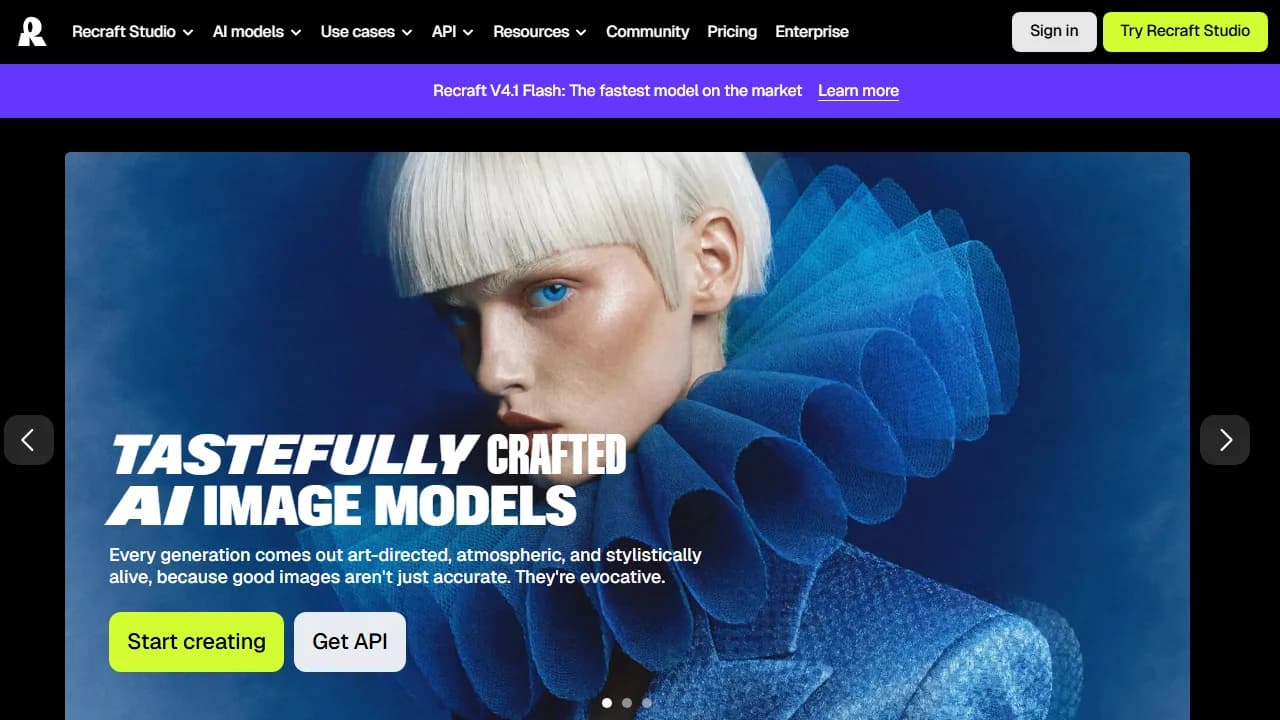
Recraft is an AI image tool with a strong lean toward illustration, icons and vector art, and vector generation is included on its free plan. That suits a flat, graphic banner: a mascot, a pattern, a logo-style scene. The free plan's credits reset daily, uploads are capped at three images a day, and each prompt returns up to two images. Read the ownership line before you publish anything: Recraft's docs say images made on the free plan are owned by Recraft, appear in its public gallery and are not licensed for commercial use. A monetized channel is commercial use.
Key features
- Raster and vector image generation
- Vector editor on every plan
- Up to two images per prompt on free
- Commercial rights on paid plans
Best for
- Illustrated or vector banner backgrounds
- Trying a style before paying for one month of it
Pricing
- Free plan: credits reset daily, three uploads a day
- Basic: $12/mo for 1,000 credits, or $120 a year
Pros
- Vector output, rare among AI tools
- A low entry price once you need commercial rights
Cons
- Free images belong to Recraft and can't be used commercially
- Free images are public in its community gallery
7. ThumbnailMaker, best for a banner from your channel link
ThumbnailMaker is not a free banner maker, and it is last here for that reason. Its banner maker reads your channel (the name, the description and the latest video titles) and builds the whole banner from that, the lettering included.
Every tool above leaves the safe area to you, and that is the part ThumbnailMaker's banner maker does: a finished banner from your channel link, with your name inside the safe area.
- From your channel link: paste your channel's link (or switch to Describe it and type the name and one sentence on the channel) and the brief is written for you: the scene, the style, your channel name spelled as YouTube has it, and an optional second line such as your upload schedule. A second line it proposes is kept only if that sentence is in your channel's description, so it never invents a schedule.
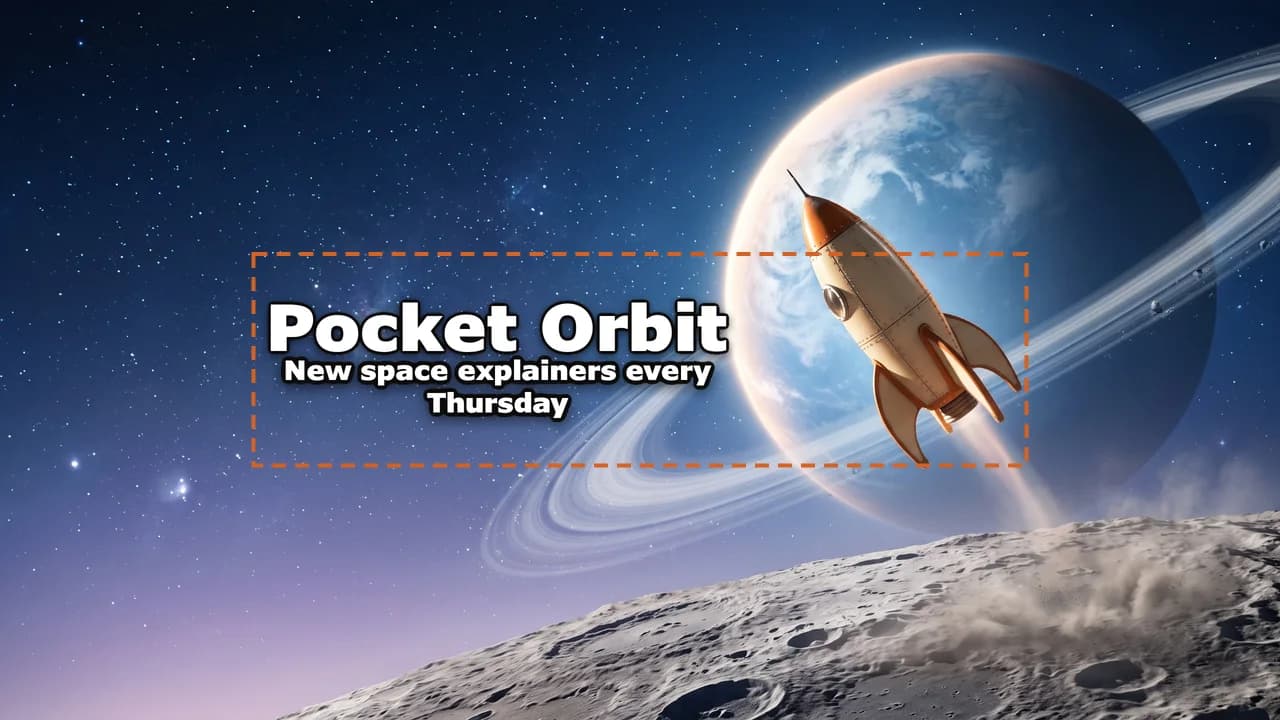
- Inside the safe area: the scene is painted with no letters in it, then code sets your name in the centred 1546 × 423 area every screen shows, beside the subject, at the largest size that fits. The name is read back as a last check. You get a 2560 × 1440 JPEG of 6 MB or less.
- Change it in a sentence: "make the name smaller" or "set the name in yellow" is redone in code, with no new picture; a change to the scene ("make the sky orange") repaints only the picture, and the words are set on it again.
Banners take a plan: 10 credits each, on every plan from $12 a month. The banner resizer and the banner size guide are free.
How to make a YouTube banner with ThumbnailMaker
- Sign up and pick a plan: banners are on every plan, from $12 a month. In Create, choose Banner under Format.
- Under Your channel, paste your channel link, or switch to Describe it and type the channel name and what the channel is about. Add a Second line if you want one, such as your upload schedule.
- Click Write my brief. Read the scene, the name and the style it proposes, and change any word.
- Click Generate.
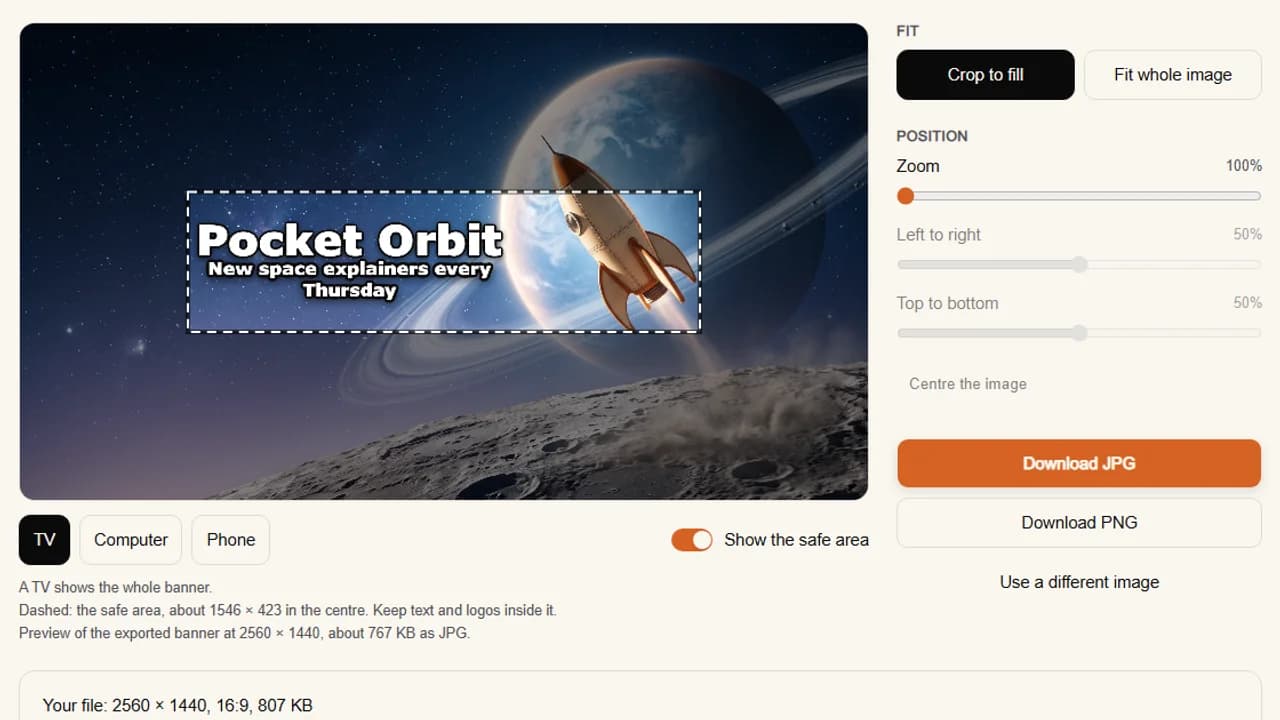
- Turn on Show the safe area and switch between TV, Computer and Phone to see what each screen keeps.
- If something is off, type it under "What should we fix?" and click Correct.
- Click Download JPEG.
If you already have an image, the free YouTube banner resizer is the better tool: it crops or fits any image to 2560 × 1440 in your browser, shows the safe area, and saves a JPG under 6 MB, with no account and no watermark. The banner size guide linked at the top has every figure from YouTube Help, and the banner maker's own page follows one banner from the channel link to the download.
Key features
- A brief from your channel link: scene, style, name, second line
- Name and second line set in code inside the safe area, at the largest size that fits
- 2560 × 1440 JPEG, 6 MB or less
- Corrections in a sentence: the words in code, the scene repainted
- Safe-area overlay with TV, Computer and Phone views
- A free banner resizer with a safe-area overlay, no account
Best for
- A banner whose name has to read on a phone, made without designing
- Channels that already make their thumbnails here
Pricing
- Starter $12 a month for 400 credits, about 40 banners; Pro $39 for 1,000; Studio $99 for 3,000
- Yearly $120, $384 and $984, paid up front; the first yearly payment is refunded in full within 14 days
- A banner is 10 credits, like a thumbnail; a correction is 10 too
- Banners are not part of the free preview. The banner resizer and the banner size guide are free, with no account
Pros
- The only tool here that keeps the words inside the safe area by construction
- The name's spelling comes from YouTube, not from a model
Cons
- The banner maker needs a paid plan; there is no free banner
- No templates and no layers: two typefaces, set beside the subject, and a name in a script beyond Latin falls back to lettering drawn by the model
How to choose a free YouTube banner maker
Do you want a template or a scene?
A template is faster: Canva, Adobe Express or VistaCreate give you a layout that works, and you change the words. A scene is more personal: Dreamina or Recraft paint it, and you place the name yourself. If you want the scene without placing the name, that is the job ThumbnailMaker's banner mode does, on a plan.
Will you make an account?
If not, Photopea is the answer: the whole editor, no email. ThumbnailMaker's banner resizer also works with no account, but it resizes an image you already have; it doesn't design one. Every other tool here asks you to sign up before you can save or download.
Is your channel monetized?
Then read the licence of anything an AI made. Recraft's free images are owned by Recraft and not licensed for commercial use, and a monetized channel, a sponsor read or a merch link is commercial use. A banner built from your own photos and text in a template editor doesn't depend on an AI tool's licence.
Will the name survive a phone?
Most free banners fail here, and no template editor on this list draws the safe area. Before you upload, put the file through the free banner resizer and switch its preview to Phone, or open YouTube Studio's crop preview and look at the middle strip. If the name touches the edge of that strip, move it in. A banner with a cut name looks worse than a plain one.
Frequently asked questions
What is the best free YouTube banner maker?
Canva, for most channels: banner templates already sized at 2560 × 1440, a large free library and 20 free AI uses. Adobe Express is close behind and has more free fonts. Photopea is the best choice if you won't make an account.
Can I make a YouTube banner for free without an account?
Yes, in Photopea, a browser editor that needs no sign-up and has community banner templates. ThumbnailMaker's banner resizer also needs no account, but it resizes an existing image to 2560 × 1440 rather than designing one.
What size should a YouTube banner be?
2560 × 1440 pixels, 16:9, 6 MB or smaller, per YouTube Help. The minimum is 2048 × 1152. Keep the name and logo inside the centred safe area, about 1546 × 423 pixels on a 2560 × 1440 banner. The banner size guide linked above has every figure and its source.
Why does my free banner look cut off on a phone?
Because a phone shows only the middle strip of the banner. Template tools give you the right canvas size but not the safe area, so text near the top, the bottom or the sides disappears. Move it into the centred 1546 × 423 strip, then check the crop preview in YouTube Studio.
Can AI make a YouTube banner?
Yes. Dreamina and Recraft paint one from a prompt with free daily credits, and you add or place the name. ThumbnailMaker, on a paid plan, writes the prompt from your channel link and sets the name in code inside the safe area. Check each tool's licence before using free AI output on a monetized channel.
Does Canva have free YouTube banner templates?
Yes. Canva's free plan includes YouTube banner templates sized for YouTube, among 1.6 million templates in total. Some templates, photos and AI tools are marked Pro and need the paid plan, US$144 a year.
Is ThumbnailMaker's banner maker free?
No. A banner costs the same as a thumbnail, and plans start at $12 a month for 40. What is free is the banner resizer, which fits any image to 2560 × 1440 with the safe area marked, and the banner size guide. Banners aren't part of the free preview.
Which free banner maker to start with
For a banner tonight, open Canva's banner templates; for more fonts, Adobe Express; for no account, Photopea. Whatever you make, check the middle strip before it goes live, with the free resizer or YouTube Studio's crop preview. And if you would rather make the banner from your channel link with the name placed for you, that is what ThumbnailMaker's banner mode is for, on the same plans as its thumbnails.
Details were checked on each vendor's own pages on October 28, 2026: Canva's banner maker, Canva's pricing, Adobe Express's banner maker, Adobe Express's pricing, Photopea, Photopea's YouTube templates, VistaCreate's banner maker, VistaCreate's plans, Dreamina's banner maker, Recraft's free plan, Recraft's ownership rules and Recraft's paid plans. YouTube's banner rules are on its channel branding help page.
ThumbnailMaker is an independent product and is not affiliated with, sponsored by, or endorsed by Canva, Adobe, Photopea, VistaCreate, CapCut, Dreamina or Recraft. Canva, Adobe Express, Photopea, VistaCreate, CapCut, Dreamina and Recraft are trademarks of their respective owners, named here only to compare publicly documented features. The other tools' descriptions come from their own pages, not from our testing. Details were accurate when written and may have changed since.
ThumbnailMaker Team — Guides from the people building ThumbnailMaker: thumbnail design, CTR, and what happens under the hood of an AI generator. Every number is checked against YouTube's own pages and dated.
Try it on your next video
Paste the video's link: the brief is written for you and your first thumbnail is a free preview. Plans from $12 a month.