YouTube Banner Size (2026): 2560 × 1440 and the Safe Area
By ThumbnailMaker Team · · 10 min read
Quick answer: the YouTube banner size YouTube recommends is 2560 × 1440 pixels, a 16:9 image, "especially for TV". The smallest banner it accepts is 2048 × 1152, also 16:9, and the file must be 6 MB or smaller. The number that matters most is the safe area, the part of the banner every screen shows. YouTube gives it as 1235 × 338 pixels on a 2048 × 1152 banner; scaled up to 2560 × 1440, that is about 1546 × 423, centred. A TV shows the whole image. Computers and phones show a horizontal strip through the middle, so anything outside the safe area (your name, your logo, your upload schedule) can be cut off. Keep text and logos in that centre strip, use the rest as background, and leave out borders, shadows and frames, which YouTube asks you not to add. You upload it in YouTube Studio under Customization, then Profile. Every figure here comes from YouTube Help, checked on October 28, 2026.
A banner is made once; a thumbnail is made for every video. For those, the AI thumbnail maker builds a 16:9 thumbnail from your video's link: your first thumbnail is a free preview, plans from $12 a month.
What size is a YouTube banner?
A YouTube banner is 2560 × 1440 pixels, in 16:9. YouTube's channel branding page lists it as the recommended dimension, "especially for TV", and its banner and profile picture tips put it more firmly: "We recommend that your banner image be at least 2560x1440 px to achieve the best display on all devices."
The floor is 2048 × 1152, the minimum dimension for upload. The ceiling is the file, not the pixels: 6 MB or smaller. YouTube Help gives no maximum width or height. "YouTube banner dimensions", "channel banner size" and the older "channel art size" all ask for the same image, and the answer is the same one.
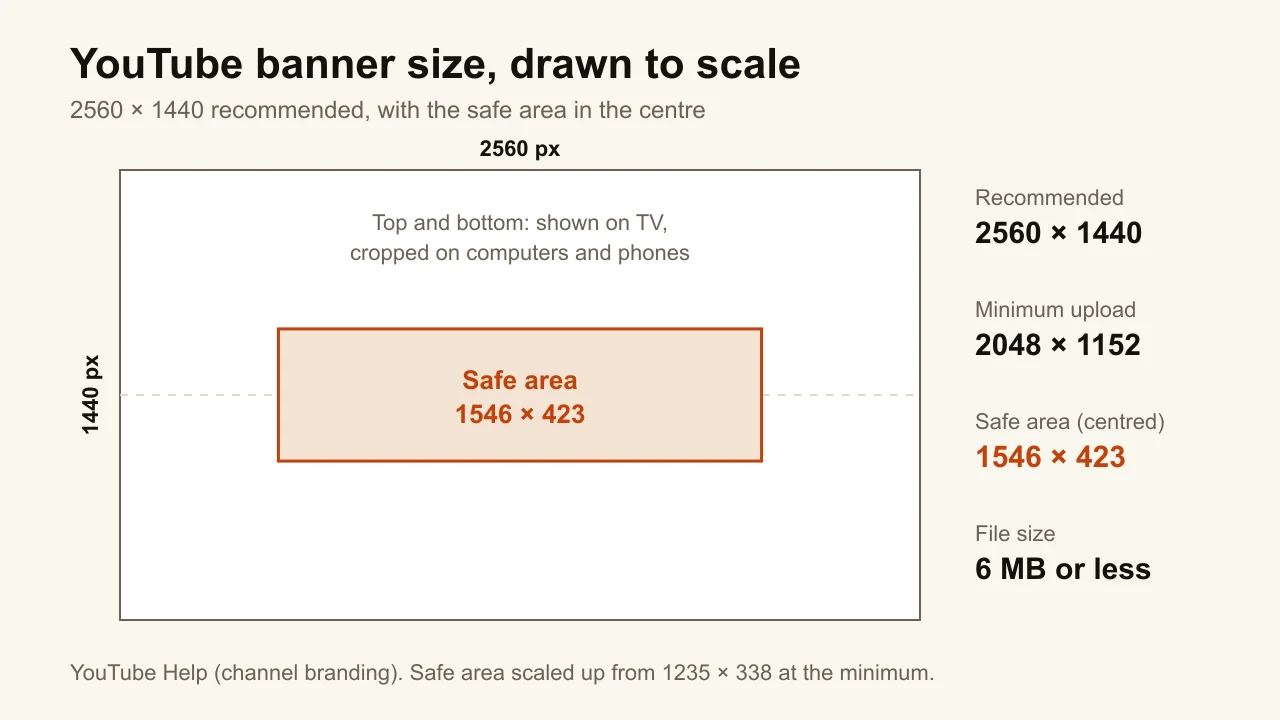
Here is every number in one place, with where it comes from.
| What | Size or limit | Source |
|---|---|---|
| Banner, recommended | 2560 × 1440 px | Channel branding, banner tips |
| Banner, minimum | 2048 × 1152 px | Channel branding |
| Aspect ratio | 16:9 | Channel branding |
| Safe area at the minimum size | 1235 × 338 px | Channel branding |
| Safe area at 2560 × 1440 | about 1546 × 423 px | 1235 × 338 scaled by 1.25 |
| Banner file size | 6 MB or smaller | Channel branding |
| Profile picture | shown at 98 × 98 px, up to 15 MB | Channel branding |
| Video watermark | at least 150 × 150 px, under 1 MB | Channel branding |
| Video thumbnail | 3840 × 2160 px recommended | Add custom thumbnails |
What is the YouTube banner safe area?
The YouTube banner safe area is the rectangle in the middle of the banner that shows on every device. YouTube's channel branding page gives one figure for it: "At the minimum dimension, the safe area for text and logos: 1235 x 338 px." The minimum dimension is 2048 × 1152.
YouTube doesn't publish the safe area at the recommended size, but the arithmetic is simple. 2560 is 1.25 times 2048, so the safe area grows by the same factor: 1235 × 1.25 is about 1544 and 338 × 1.25 is about 423. Most guides quote 1546 × 423, and the two-pixel difference never matters. The safe area is centred, so on a 2560 × 1440 canvas it starts about 507 pixels from each side and 508 pixels from the top.
That leaves less than a fifth of the image for anything that has to be read. It is a wide, short strip, roughly 3.65 times as wide as it is tall. A logo, a channel name and one line of text fit. A paragraph does not.
The banner safe area is a different thing from the thumbnail safe zone, which is about the duration badge YouTube draws in a thumbnail's bottom-right corner.
How does the banner look on mobile, desktop and TV?
A YouTube banner is one file for every screen, cropped differently on each. YouTube's help page says it directly: "The same banner image is used across computer, mobile, and TV displays, but it shows differently depending on your device." There is no separate mobile banner to upload, so the YouTube banner size for mobile is the same 2560 × 1440.
A TV shows the whole 16:9 image, which is why YouTube recommends the full size "especially for TV". Computers and phones show a horizontal strip through the middle of it: the top and bottom are cut, and how much of the strip you see depends on the screen. The only part YouTube guarantees on all of them is the safe area.
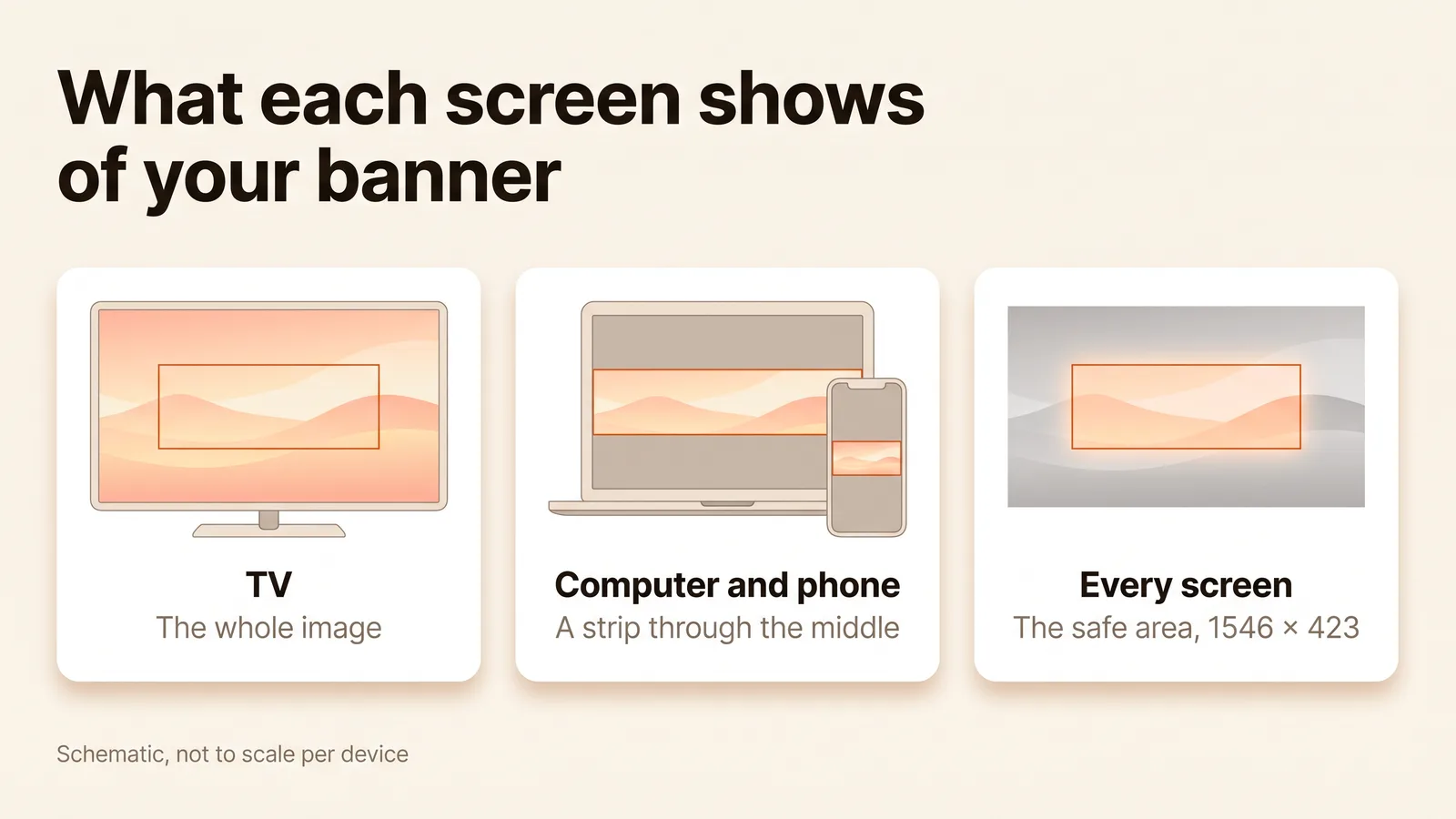
You will find tables online with a crop size for each device. YouTube does not publish those; the only per-device promise on its page is the safe area. Design to the safe area and the per-device numbers stop mattering.
What aspect ratio is a YouTube banner?
A YouTube banner is 16:9, the same shape as a YouTube video and its thumbnail. 2560 × 1440 and 2048 × 1152 are both 16:9: divide the width by 16 and multiply by 9 and you get the height.
The confusing part is that what people see on a computer or a phone is much wider than 16:9. The safe area alone is about 3.65:1. That is why a banner designed as a wide strip and then stretched to 16:9 looks wrong, and why a 16:9 photo uploaded as is loses its top and bottom. Build the 16:9 canvas first and put the strip inside it. Designing at the correct size beats cropping to roughly the right shape, for banners as much as for thumbnails.
How do you upload or change a YouTube banner?
The banner lives in YouTube Studio, under Customization, on a computer. These are YouTube's own steps from its channel branding page:
- Sign in to YouTube Studio.
- In the left menu, select Customization, then Profile.
- Next to the banner image, click CHANGE and select an image.
- To adjust it, select a preview and change the crop, then click DONE.
- Click PUBLISH.
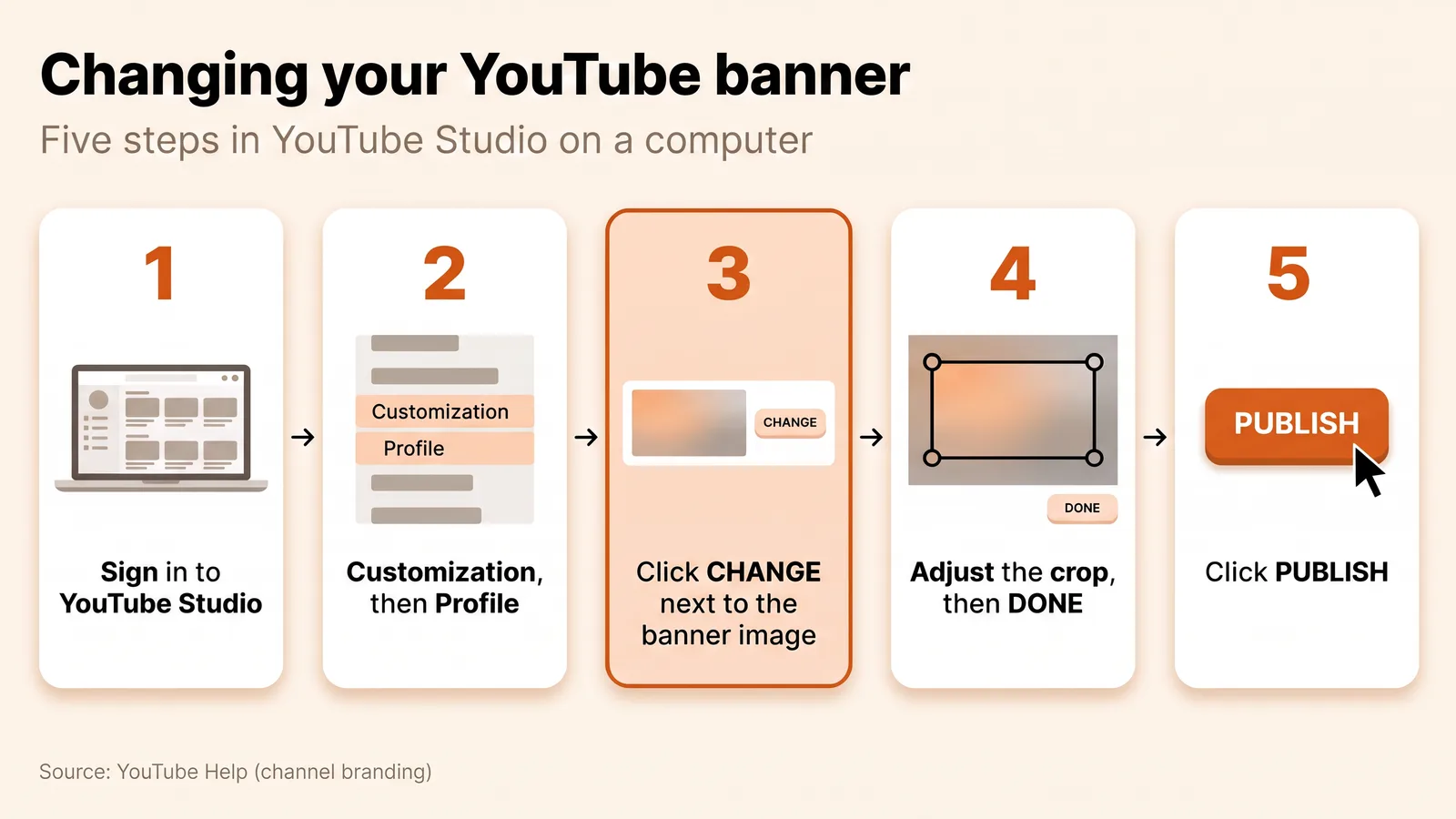
The crop preview is worth a slow look: it is where a name placed too close to the edge gets caught before anyone else sees it. Thumbnails are uploaded somewhere else, video by video; how to change a thumbnail on YouTube covers that path, including the phone verification it needs.
What size is the YouTube profile picture and watermark?
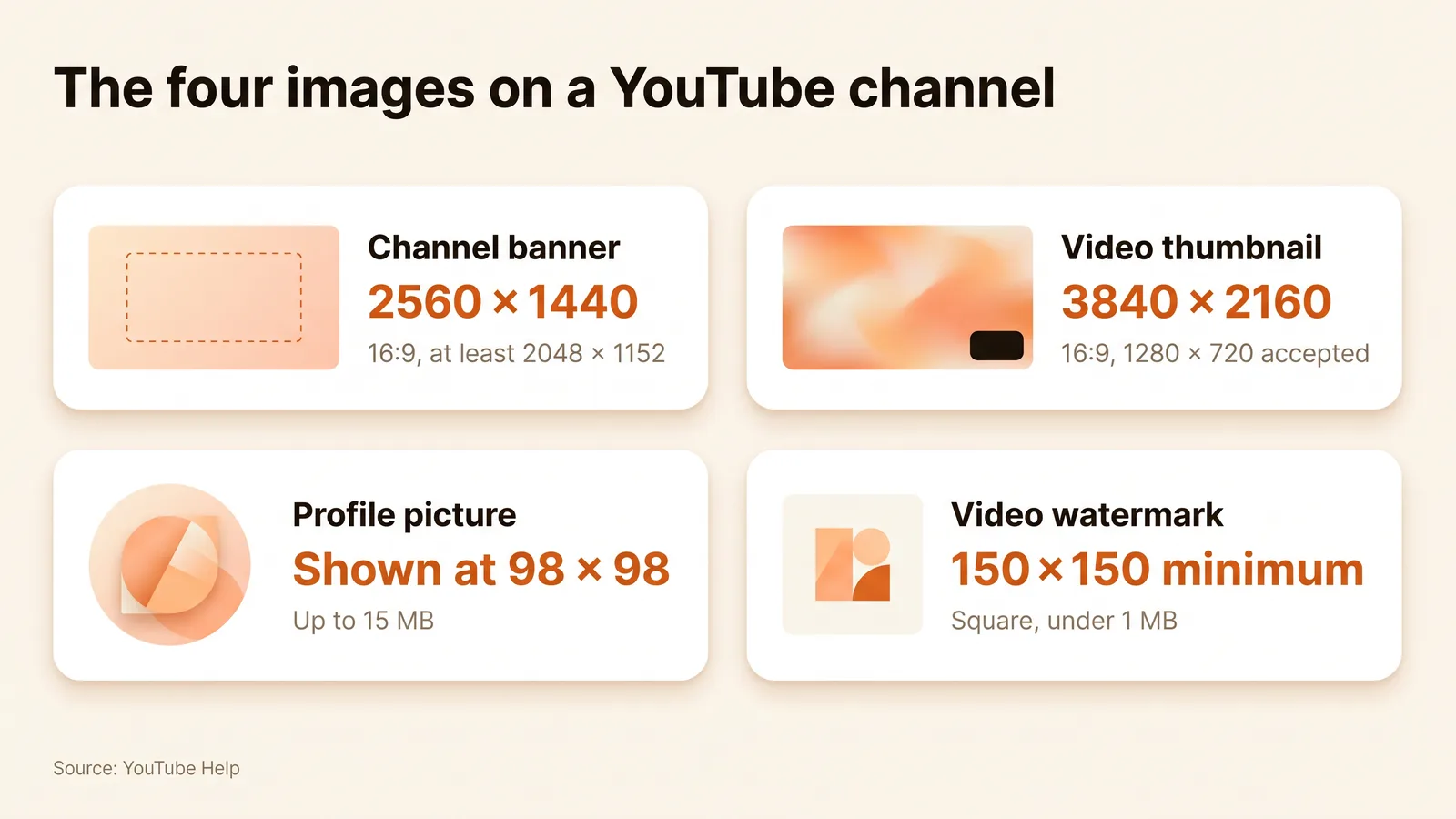
The profile picture and the video watermark are the two other images that brand a channel, and YouTube's channel branding page gives the limits for both.
- Profile picture: JPG, GIF, BMP or PNG, no animated GIFs, 15 MB at most. It renders at 98 × 98 pixels. YouTube publishes that display size, not an upload size; we would upload a square several times larger and keep the face or logo in its middle.
- Video watermark: at least 150 × 150 pixels, a square image of less than 1 MB.
The fourth image is the thumbnail, with its own numbers: 3840 × 2160 recommended, 1280 × 720 still accepted, and every file limit is in the YouTube thumbnail size guide.
How do you make a YouTube banner that works on every device?
A banner works on every device when everything that has to be read sits in the centre 1546 × 423 and everything else can lose its edges without anyone noticing. In practice:
- Start on a 2560 × 1440 canvas. Not a photo cropped down later, and not the 2048 × 1152 minimum: YouTube recommends the full size for TV.
- Mark the safe area first. A 1546 × 423 guide rectangle, centred. Channel name, logo and tagline go inside it, with a little margin. If you are starting from an image you already have, the free YouTube banner resizer crops or fits it to 2560 × 1440 with that rectangle drawn on top, in the browser.
- Treat the rest as background. A gradient, a texture or a wide photo that still looks fine with its top and bottom cut off.
- No borders, shadows or frames. YouTube asks for this explicitly. A frame drawn around the edge is only whole on a TV; on a computer or a phone the crop leaves fragments of it.
- Size the text for a phone. The banner shrinks a long way on a small screen, so the rule for thumbnail fonts applies here too: heavy strokes survive the shrink, thin and script faces don't.
- Consider an upload schedule line. YouTube's banner tips suggest adding your upload schedule to the banner. "New videos every Tuesday" is short enough to fit in the safe area next to the name.
- Export under 6 MB. A JPG keeps a photo-heavy 2560 × 1440 banner well under the limit; a PNG suits flat colour and text.
- Look at it on a phone and a computer after publishing. The channel page on both is where a name too close to the edge shows up.
Frequently asked questions
Is 2048 × 1152 good enough for a YouTube banner?
It is accepted: 2048 × 1152 is YouTube's minimum dimension for upload. It is not what YouTube recommends. Its tips page asks for "at least 2560x1440 px to achieve the best display on all devices", and its branding page ties the full size to TV, the one screen that displays the whole image.
Is the YouTube cover photo the same as the banner?
Yes. "Cover photo", "channel art" and "channel banner" all refer to the image YouTube Help calls the banner image, the one that "shows as a background at the top of your YouTube page". The size is the same: 2560 × 1440, 16:9, 6 MB or smaller.
Can I upload a different banner for mobile?
No. YouTube uses one banner image on computer, mobile and TV and crops it per device. The way to make it work on a phone is to keep everything readable inside the 1546 × 423 safe area.
Why is my YouTube banner cut off?
Because something sits outside the safe area. On computers and phones YouTube shows only a strip through the middle of the 16:9 image, so text near the top, the bottom or the far sides disappears. Move it inside the centred 1546 × 423 rectangle (1235 × 338 on a 2048 × 1152 banner) and use the crop preview in YouTube Studio to check before publishing. A banner resizer with a safe-area overlay shows the same thing before you upload.
What comes after the banner?
The banner sits at the top of the channel page. Right under it are the videos, and each one is sold by its thumbnail, an image you make every week instead of once a year. ThumbnailMaker makes those thumbnails from your video's link, in 16:9 for videos and 9:16 for Shorts. Your first thumbnail is a free preview, small and watermarked; plans start at $12 a month.
ThumbnailMaker Team — Guides from the people building ThumbnailMaker: thumbnail design, CTR, and what happens under the hood of an AI generator. Every number is checked against YouTube's own pages and dated.
Try it on your next video
Paste the video's link: the brief is written for you and your first thumbnail is a free preview. Plans from $12 a month.