How to Change or Add a Thumbnail on YouTube (2026)
By ThumbnailMaker Team · · Updated · 9 min read
Quick answer: to add or change a custom thumbnail on YouTube, your channel has to be phone-verified first; that is why the upload button is missing for most people the first time they look. Once verified: on desktop, open YouTube Studio, click Content, click the video, then Upload file under Thumbnail. On the mobile app, tap your profile picture, Your videos, then More → Edit → Edit thumbnail → Custom thumbnail. For a Short, your own image can only be added from a computer; the app only lets you pick a frame from the video. Upload a JPG or PNG in 16:9 (9:16 for Shorts); YouTube now recommends 3840 × 2160, and 1280 × 720 still works. The file size ceiling is 2 MB on mobile and 50 MB on desktop. You can change a thumbnail on a published video whenever you like: it does not reset the video, delete its views or restart anything, and the new image takes a while to show everywhere.
How do I get the custom thumbnail option on YouTube?
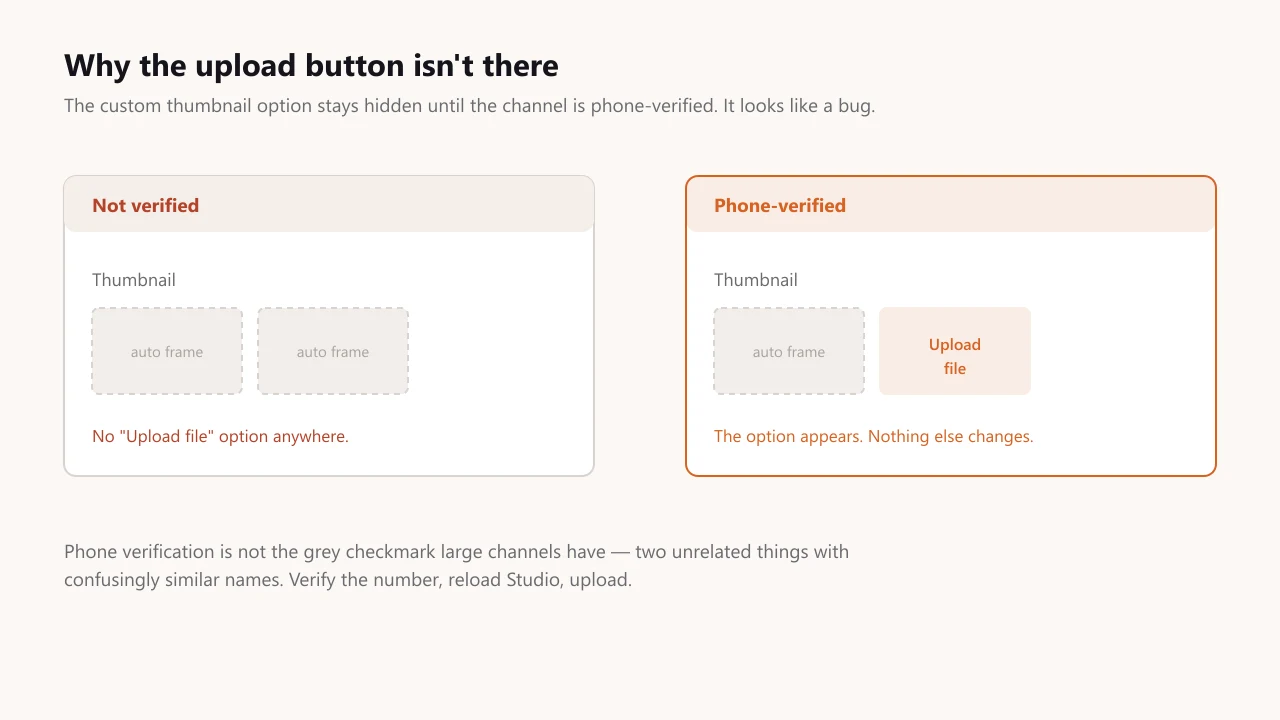
Because the channel isn't verified yet. This trips up nearly everyone once, and it looks like a bug rather than a requirement: the upload area simply isn't there, so people assume they're in the wrong menu and keep hunting.
Verification here means a phone number, not the grey checkmark that verified artists and large channels have. Those are two unrelated things with confusingly similar names. Verify the phone number, reload Studio, and the option appears.
How do I add a custom thumbnail on desktop?
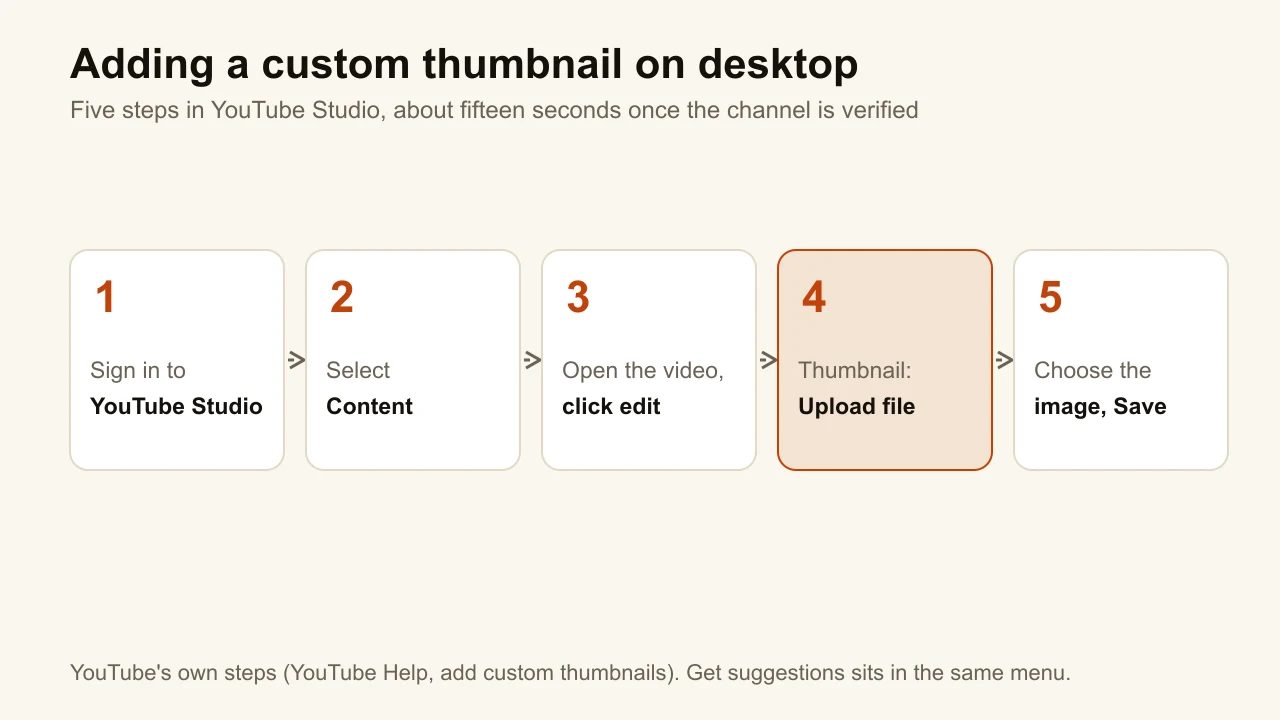
Everything happens in YouTube Studio, and it takes about fifteen seconds once the channel is verified. There is no separate thumbnail manager to find — the control sits on the video's own page.
- Sign in to YouTube Studio.
- Select Content in the left menu.
- Open the video you want to change and click the edit icon.
- Under Thumbnail, click Upload file. (The same menu also has a Get suggestions option.)
- Choose your image, then Save.
You can do this during the upload flow for a new video, or any time afterwards on a video that's already live. These steps are YouTube's own, from their custom thumbnails help page.
How do I add a custom thumbnail on my phone?
The mobile app can do it too, though the path is buried deeper than on desktop and the file size ceiling is much lower.
- Open the YouTube app and tap your profile picture.
- Tap Your videos.
- Next to the video, tap More, then Edit.
- Tap Edit thumbnail.
- Tap Custom thumbnail instead of picking one of the auto-generated frames.
- Confirm with SELECT, then SAVE.
The YouTube Studio app works the same way: tap Content, pick the video, then Edit and Edit thumbnail. To make the image on the phone too, these thumbnail maker apps for iPhone and Android are compared side by side.
The auto-generated options on that screen are three frames pulled from the video itself. They are always available, they never need verification, and they are almost always worse than anything you'd make deliberately — a frame grabbed mid-sentence with a half-closed eye is not a thumbnail, it's an accident. YouTube's own thumbnail tips put a number on it: 90% of the best-performing videos have custom thumbnails. If you have no design tool yet, several free YouTube thumbnail makers work without an account.
How do I change the thumbnail on a YouTube Short?
With your own image: from a computer, in YouTube Studio. That is the only place an uploaded image works: YouTube's Help page says custom Shorts thumbnails "are currently only available to add in YouTube Studio on a computer", so the phone app's Edit thumbnail screen won't offer it for a Short.
- Sign in to YouTube Studio on a computer.
- Select Content, then the Shorts tab.
- Open the Short and click the edit icon.
- Under Thumbnail, click Upload file.
- Choose the image, then Save.
You can set it while uploading the Short or at any point afterwards. Make the image vertical, 9:16: YouTube recommends 2160 × 3840, with a minimum height of 640 pixels. A 16:9 image is the wrong shape here. It's also why a landscape thumbnail on a vertical video gets swapped out: on the home, Explore and Subscriptions pages, YouTube replaces it with an auto-generated 4:5 one.
On a phone, you can't upload your own image for a Short, but you can choose which frame of it becomes the thumbnail, before or after it goes up, and only in the YouTube app, not in Studio (YouTube Help, Create YouTube Shorts):
- While uploading: on the final upload screen, tap Edit on the thumbnail, pick a frame, then Done.
- After it's published: go to your channel, Your videos, tap More on the Short, then Edit, pick a frame, then Done.
Either way you can add text or a filter to the frame, but an edit can't be undone step by step once it's done, so pick the frame before the text. For an image you made yourself, it's the computer route above.
What file format and size does YouTube accept?
JPG or PNG, in a 16:9 ratio for videos and 9:16 for Shorts. YouTube now recommends 3840 × 2160 for videos and 2160 × 3840 for Shorts, with a minimum of 640 pixels; 1280 × 720 is still accepted. The full breakdown is in YouTube thumbnail size.
| Where you upload from | Thumbnail type | Ceiling |
|---|---|---|
| Mobile | Video | 2 MB |
| Mobile | Podcast | 10 MB |
| Desktop | Any | 50 MB |
A properly compressed image at 1280 × 720 lands far under all of these, so the limits only bite if you're uploading something unusually large. The 2 MB mobile ceiling is the one people actually hit — a 4K export straight off a phone camera can clear it easily. Upload from desktop if you're near the line, or read the full breakdown of YouTube thumbnail sizes.
Can I change a thumbnail after the video is published?
Yes, as many times as you want. Changing it doesn't reset the video, remove its views, or affect how long it's been up.
It also doesn't update instantly. YouTube's own documentation says thumbnail changes take time to appear, and they propagate unevenly — you'll often see the new one in Studio while the old one is still showing on the watch page, in search, and in other people's feeds. That gap is caching, not a failed upload. Give it time before re-uploading.
This is worth knowing because swapping the thumbnail on an underperforming video is one of the few genuinely reversible experiments on YouTube. Nothing is spent, nothing is lost.
Does changing a thumbnail hurt the video?
No. But measure the right thing when you do.
The obvious move is to watch click-through rate and call a higher number a win. That's half the picture. A thumbnail that promises something the video doesn't deliver will lift CTR and sink average view duration at the same time, and YouTube reads that pattern as clickbait. Check both numbers on the same video before deciding the new thumbnail was better — the goal is a click from someone who actually wants the video, not the highest click rate you can extract.
If you want the benchmarks to compare against, we wrote up what counts as a good YouTube CTR using YouTube's own published figures.
Can I test two thumbnails against each other?
Yes, and you don't need a third-party tool for it. YouTube has a native A/B test built into desktop Studio: open the video, and in the Title box or under Thumbnail click A/B Testing. You can run up to three thumbnails, three titles, or three title-and-thumbnail pairs against each other, shown to viewers at the same time. Three things are worth knowing before you rely on it; the full conditions are on YouTube's A/B testing help page.
It judges on watch time share, not clicks
YouTube reports back a Winner, a Performed Same, or an Inconclusive, and it decides using how much people actually watched, not which option got clicked most. That is the same distinction as the section above, except here YouTube has built its own opinion into the tooling. If there is no clear winner, the first thumbnail you uploaded stays.
It is desktop-only, needs advanced features, and takes up to two weeks
You can't start a test from the mobile app, and Shorts, Premieres and scheduled livestreams aren't eligible. If the option isn't there, it's usually the advanced-features requirement rather than a bug. YouTube says a test takes a few days or up to two weeks, and that variants too similar to each other run longer or end inconclusive.
Every variant must be at least 1280 × 720
If any thumbnail in the test is below 720p, YouTube downscales all of them to 480p for the test. One small file blurs the whole experiment. The hard part is having three genuinely different thumbnails to upload; what a good CTR looks like covers how to read the result, and the three-concept pack in ThumbnailMaker's AI thumbnail maker makes the three variants in one click.
What makes a thumbnail worth uploading?
One focal point, strong contrast, five words of text or fewer, and nothing in the bottom-right corner where the duration badge goes. The six-step version, with the reasons, is how to make a YouTube thumbnail that gets clicks.
How do I see what a thumbnail looks like before I upload it?
Put it in a feed. The free thumbnail tester shows your image in a mock home feed, on a phone and at the 168-pixel suggested-video size, next to a title, with the duration badge in place, and measures the badge corner and the contrast; nothing is uploaded. To see what the videos already ranking for your topic use, the YouTube thumbnail viewer shows any video's current thumbnail in every size YouTube stores.
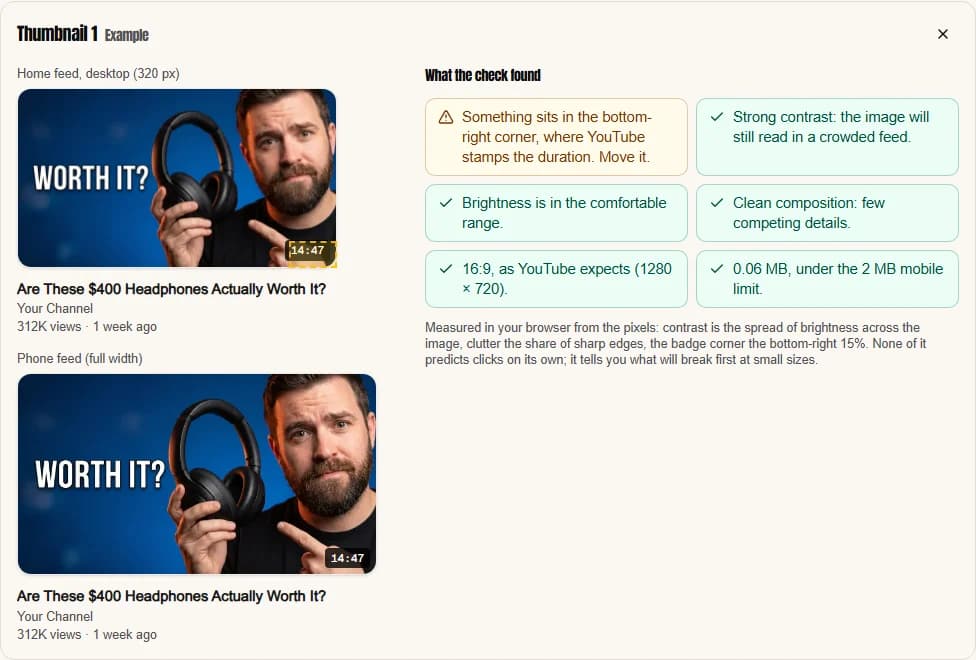
If you need the thumbnail itself rather than the upload steps, you can make it from your video's link: ThumbnailMaker writes the brief, generates the image in the 16:9 shape YouTube expects and checks it at feed size, ready for the Upload file step above. Plans start at $12 a month.
ThumbnailMaker Team — Guides from the people building ThumbnailMaker: thumbnail design, CTR, and what happens under the hood of an AI generator. Every number is checked against YouTube's own pages and dated.
Try it on your next video
Paste the video's link: the brief is written for you, then you generate with a plan from $12 a month.