How to Change Thumbnail on YouTube Shorts: Phone and PC
By ThumbnailMaker Team · · 10 min read
Quick answer: how to change thumbnail on YouTube Shorts depends on which device you are holding. On a phone, open the YouTube app, go to Your videos, tap More on the Short, then Edit, pick any frame of the video and tap Done; you can add text or a filter to that frame, but you cannot upload a picture of your own. To use your own image, sign in to YouTube Studio on a computer, open Content, the Shorts tab, the Short, then under Thumbnail click Upload file and Save. YouTube's Help page says custom Shorts thumbnails "are currently only available to add in YouTube Studio on a computer", and only on a verified account, which is why the button is missing for many people. Both routes work before publishing and after. Make the image 9:16, 2160 × 3840 recommended, at least 640 pixels tall, JPG or PNG, under 50 MB. The change can take a while to show everywhere.
If the image is the part you are missing, the YouTube Shorts thumbnail maker composes a 9:16 cover from the Short's link, on a plan from $12 a month, ready for the Upload file step below.
Can you change the thumbnail on a YouTube Short after posting?
Yes, and in two different places, with two different abilities. The YouTube app on a phone lets you choose which frame of the Short becomes its thumbnail, before the upload finishes or any time after it is live (YouTube Help, Create YouTube Shorts). YouTube Studio on a computer lets you upload an image you made yourself, on a new Short or one that is already published (YouTube Help, Add custom thumbnails). Neither route does the other's job: the app has no upload button for Shorts, and Studio has no frame picker.
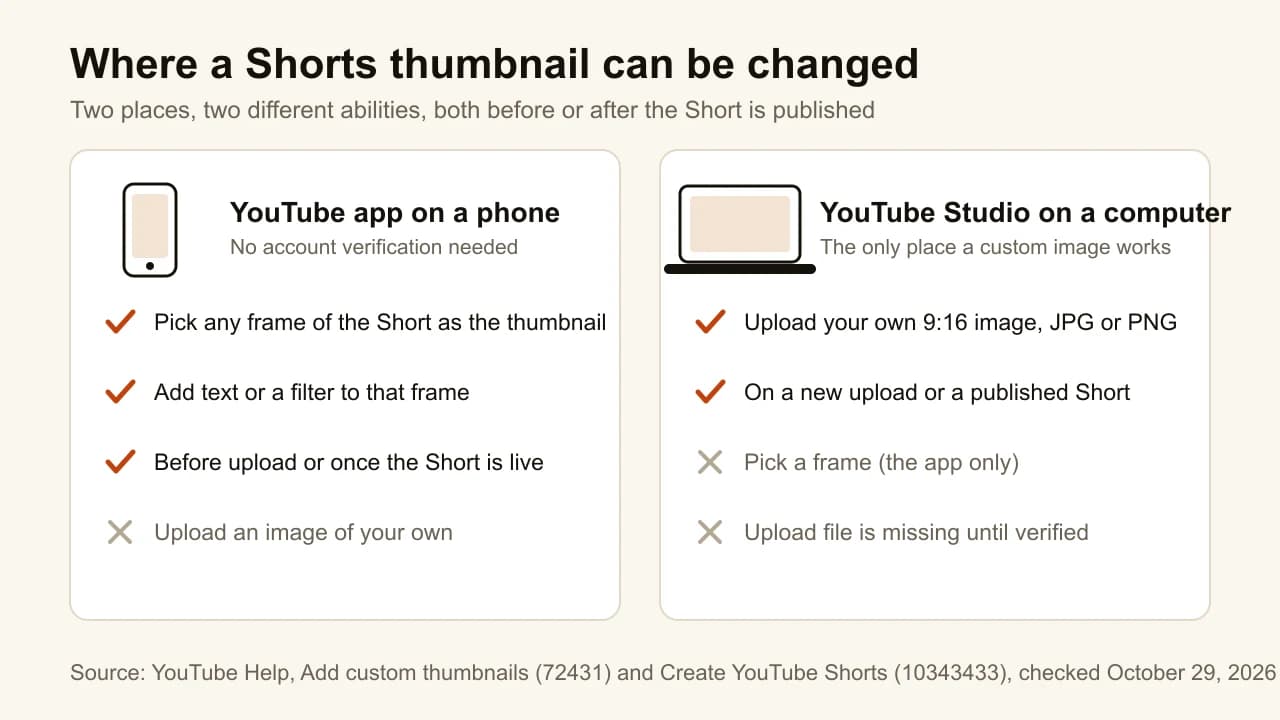
| YouTube app on a phone | YouTube Studio on a computer | |
|---|---|---|
| What you can set | Any frame of the Short, with text or a filter | An image of your own, 9:16, JPG or PNG |
| Before publishing | Yes, on the final upload screen | Yes, in the upload flow |
| After publishing | Yes, Your videos → More → Edit | Yes, Content → Shorts → the Short |
| Needs a verified account | No | Yes |
| Upload your own image | No | Yes, under Thumbnail: Upload file |
That split is the whole story, and it explains nearly every "it won't let me" complaint. Someone on a phone looking for an upload button will not find one. Someone in Studio on a computer looking for the frame scrubber will not find that either. Pick the route that matches what you have: a good frame in the video, or a cover you designed.
Changing it does not reset the Short, remove its views or restart anything. That is the same rule as for long videos, where changing a thumbnail on YouTube is one of the few reversible experiments the platform gives you.
How do I change a Shorts thumbnail on my phone?
In the YouTube app, by picking a frame. These are YouTube's own steps for a Short that is already published:
- Sign in to the YouTube app and go to your channel page.
- Tap Your videos.
- Tap More on the Short, then Edit.
- Pick a frame from the Short.
- Tap Done.
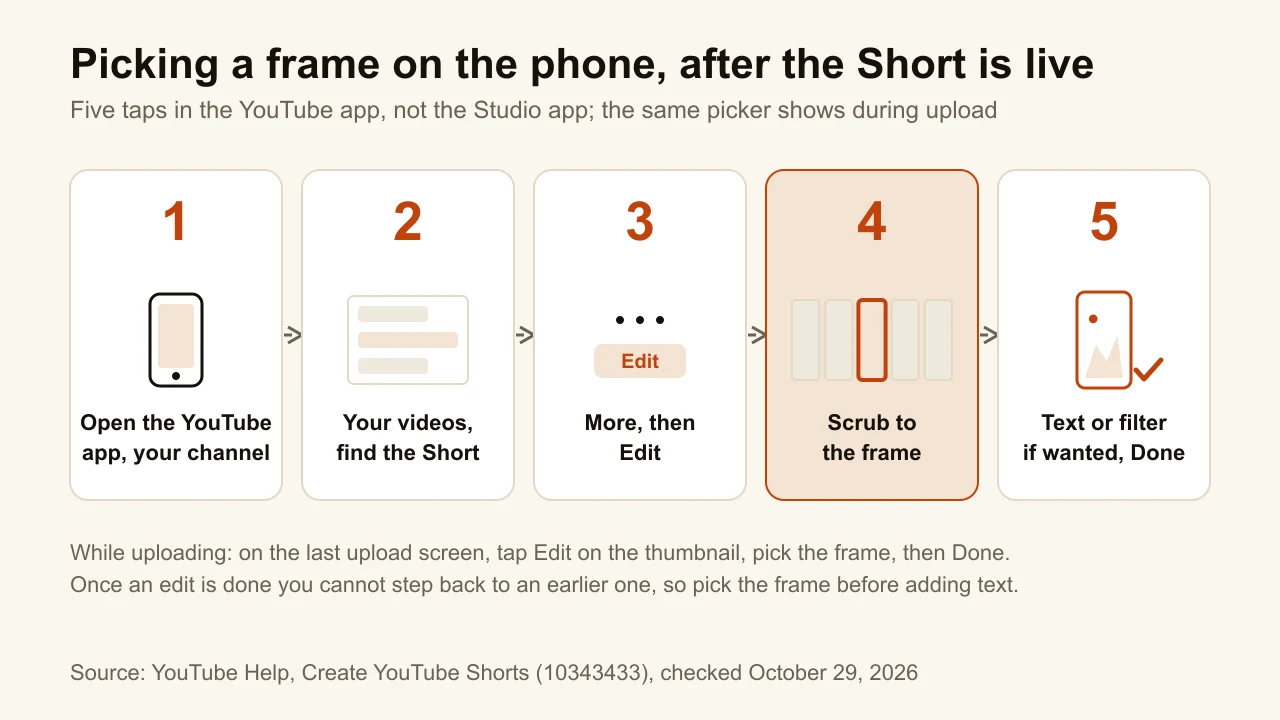
While uploading, the same picker sits on the final upload screen: tap the pencil on the thumbnail, pick a frame, tap Done. YouTube's Help page adds two details worth knowing. You can add text and apply filters to the frame, and "once done with an edit, you cannot go back to previous edits to make any changes". So choose the frame before you write on it. The page also says you "can only edit your thumbnail from the YouTube app and not from Studio", which rules out the YouTube Studio app for this job.
A frame is still a frame. A Short's best moment is usually mid-motion, and a still pulled from it tends to have a half-closed eye or a blurred hand. If the Short is one you want found in search or on your channel page, the computer route below gives you a cover you actually designed.
How do I upload a custom thumbnail to a YouTube Short?
From YouTube Studio on a computer, and nowhere else. YouTube's Help page is explicit: "Custom thumbnails for Shorts are currently only available to add in YouTube Studio on a computer. Your account must be verified to use this feature." Its steps:
- Sign in to YouTube Studio.
- From the left menu, select Content, then Shorts at the top.
- Go to the Short and click the pencil (edit) icon.
- Below Thumbnail, click Upload file and choose your image.
- Click Save.
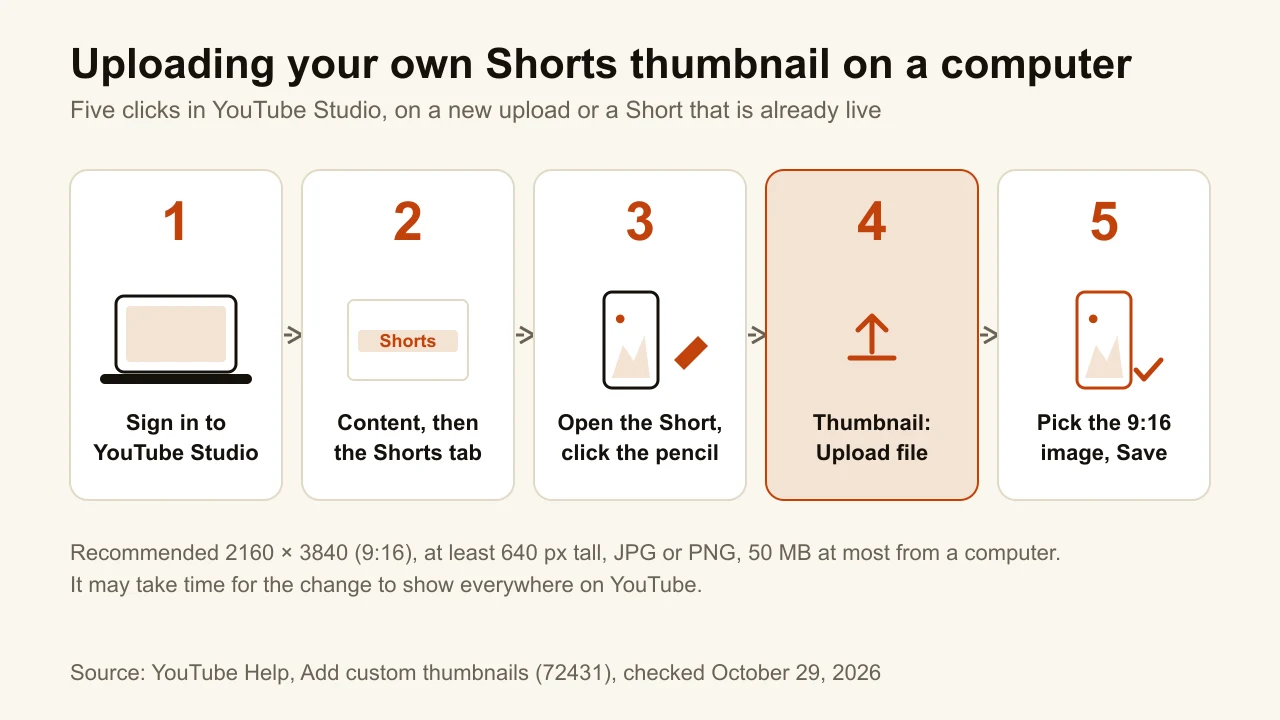
The same Thumbnail box is there during the upload flow, so a new Short can go live with your image from the first second. For uploaded files, YouTube recommends a 9:16 aspect ratio. After you save, YouTube notes that "it may take time for your thumbnail changes to appear", so a Short still showing the old image in search ten minutes later is caching, not a failed upload.
Verified here means a phone number, not the grey checkmark. YouTube's verification page lists custom thumbnails among the features a phone number unlocks, at youtube.com/verify; it also says one number can verify at most two channels a year.
Why can't I change the thumbnail on my YouTube Short?
Four reasons cover almost every case, and none of them is a bug.
The account is not verified. On an unverified channel the Upload file option under Thumbnail is simply absent. There is no error message to search for; the control is not drawn. Verify the phone number, reload Studio, and it appears.
You are on the wrong device for the job. The YouTube app picks a frame and cannot upload. Studio on a computer uploads and cannot pick a frame. The YouTube Studio app does neither for Shorts: YouTube's Shorts page says the frame picker lives only in the YouTube app.
The image is the wrong shape. YouTube's Help page says a 16:9 custom thumbnail on a vertical video "will be replaced by an auto-generated 4:5 thumbnail on the home, explore, and subscription pages". Your image still shows in the watch feed, in watch history and on non-mobile platforms, but on the three pages where most browsing happens, a landscape cover is swapped out. The fix is a 9:16 image; the next section covers the exact size.
The change has not propagated yet. Studio can show the new thumbnail while the watch page, search and other people's feeds still serve the old one. Give it time before uploading again. There is also a daily cap: YouTube's page mentions a "Daily custom thumbnail limit reached" error, resolved by trying again in 24 hours, with limits that vary by region and channel history.
One more thing to rule out: older forum answers still say the only way to change a Shorts thumbnail is to delete the Short and upload it again. YouTube's Help page now has the Upload file step above. Do not delete a Short to change its cover.
What size should a YouTube Shorts thumbnail be?
9:16, 2160 × 3840 pixels recommended, at least 640 pixels tall, as a JPG or PNG, under 50 MB from a computer. Those are the figures on YouTube's custom thumbnail page, and the full breakdown for every shape is in the YouTube thumbnail size guide. The point of the large recommendation is downscaling: YouTube shows the same image at many sizes, and a big source shrinks cleanly where a small one gets enlarged and goes soft.
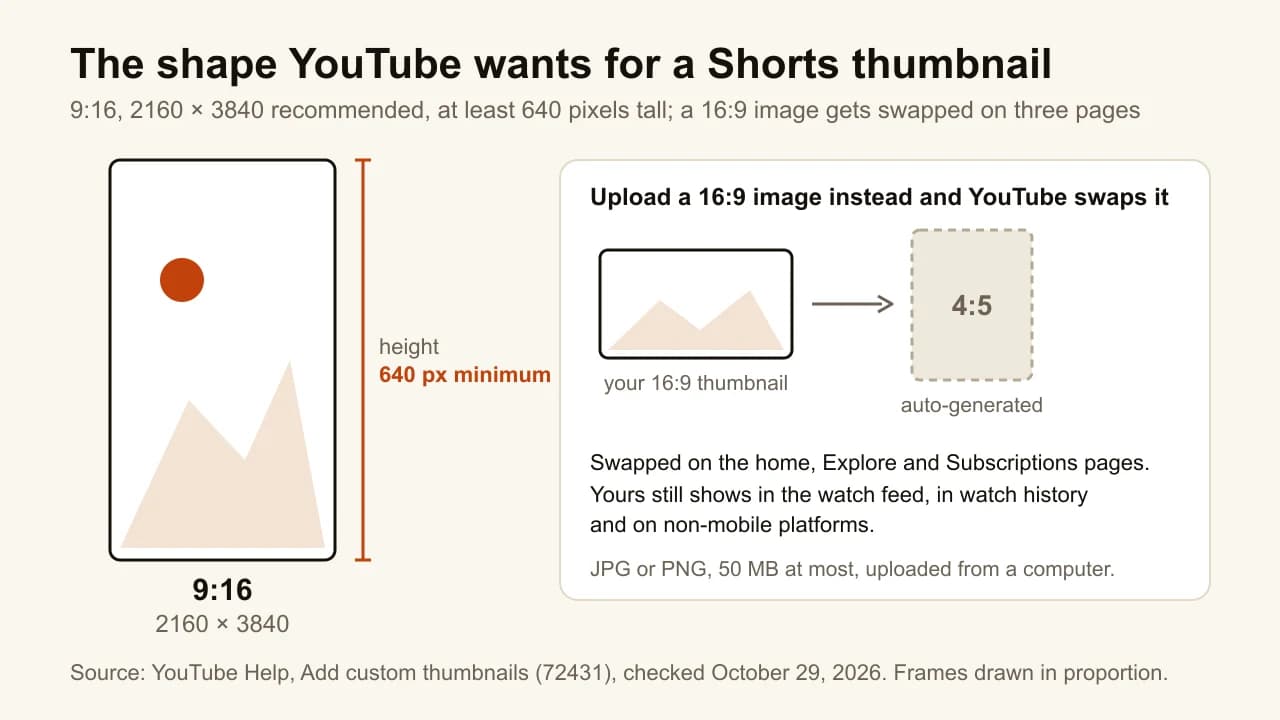
The shape matters more than the pixel count. A 1280 × 720 thumbnail made for a long video is 16:9, so it triggers the 4:5 swap above, and cropping it to 9:16 throws away most of the width, which is where the subject and the text usually sit. Compose vertically from the start, with the words above or below the subject rather than beside it. Keep the bottom third clear too: in the Shorts player, the title, the channel name and the buttons are drawn over that part of the frame.
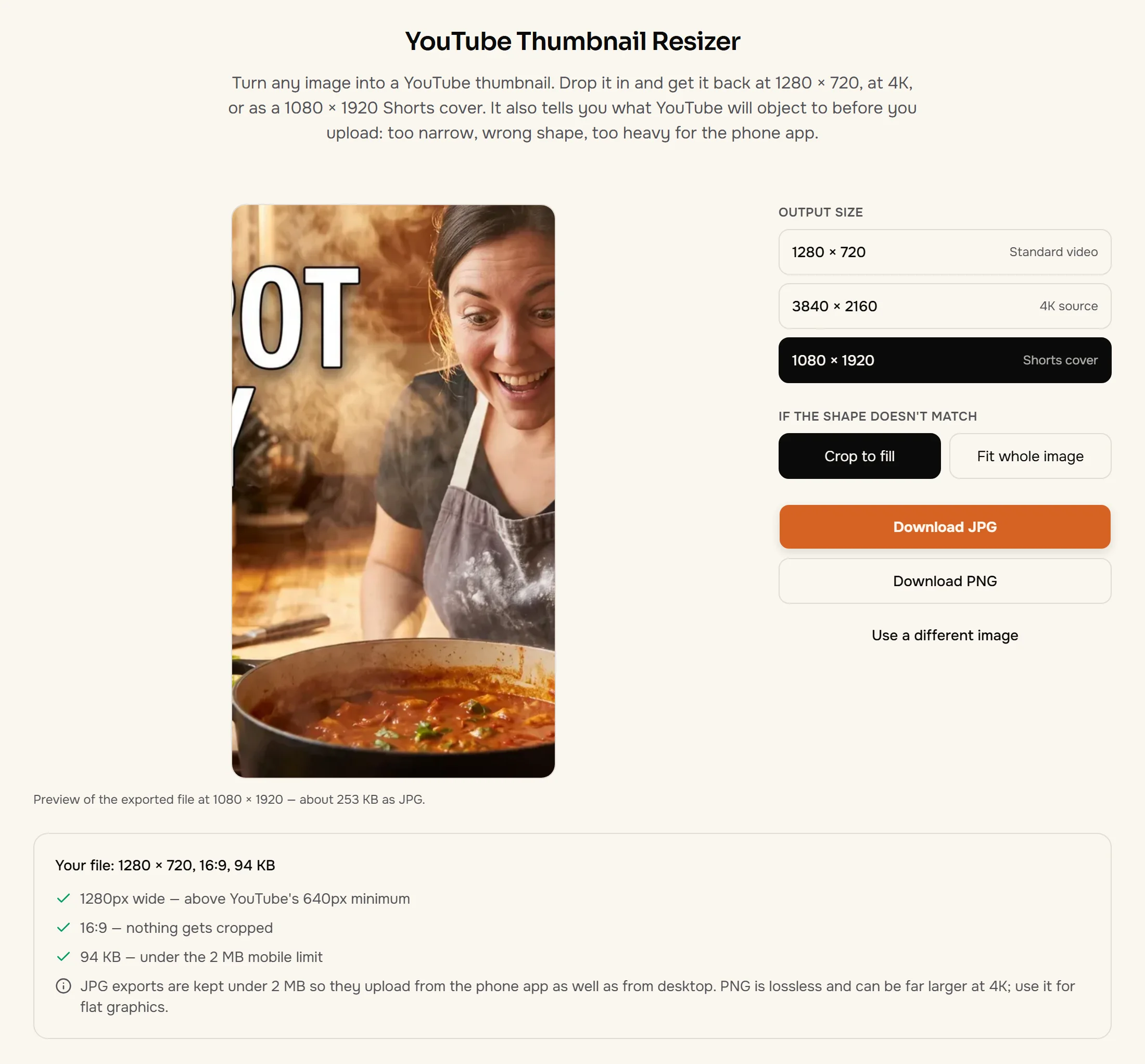
If the image you have is the wrong shape or too heavy, the free YouTube thumbnail resizer exports a 1080 × 1920 Shorts cover from any picture, crops to fill or fits the whole image, and checks the height, the shape and the file size in the browser before you go anywhere near Studio. Nothing is uploaded and no account is needed.
Should I put a thumbnail on YouTube Shorts?
Yes, if your Shorts are found anywhere other than the swipe feed. In the Shorts player, viewers swipe straight into the video and never see a cover. On a channel page and in search they do. YouTube's own creator team put it this way in an October 2023 post on the YouTube Community forum: the thumbnail is "the first thing they'll see when discovering your content from search or on your channel page". That is also where a frame grabbed mid-sentence does the most damage, next to a column of covers that were designed.
A Shorts cover follows the same rules as any thumbnail, turned on its side: one focal point, five words or fewer, strong contrast at 168 pixels, and the text kept out of the band YouTube draws over. The difference is that you have far less width to work with, so a face or a product fills the frame and the words stack above it.
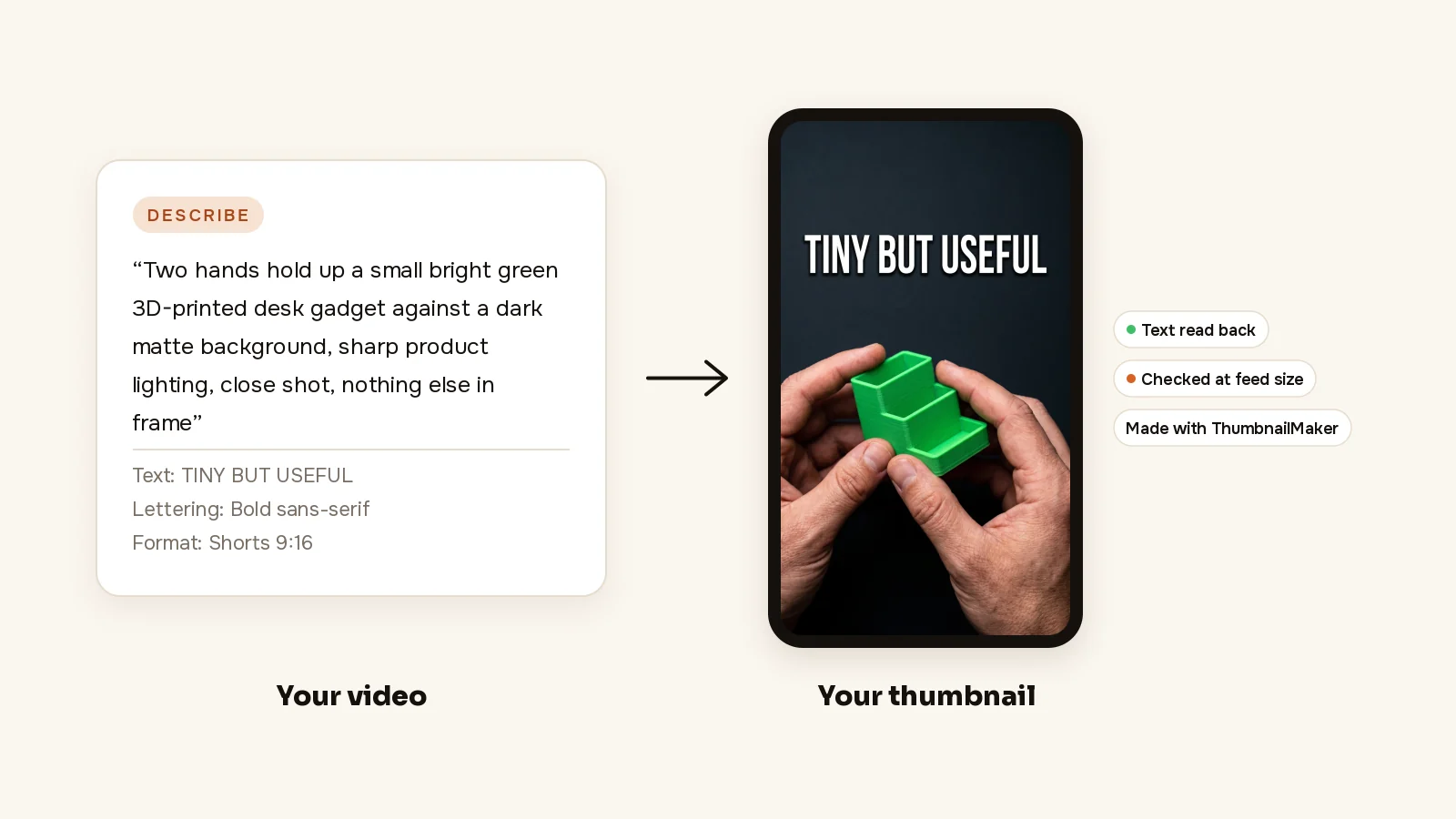
To make the cover rather than pick a frame, paste the Short's link into ThumbnailMaker and make the 9:16 cover from the video: it writes the brief from what the Short is about, composes the image vertically, reads the text back, and downloads a 1080 × 1920 file that YouTube Studio accepts. Other tools that export a vertical cover are compared in YouTube Shorts thumbnail makers. Plans start at $12 a month; the free preview comes first.
ThumbnailMaker Team — Guides from the people building ThumbnailMaker: thumbnail design, CTR, and what happens under the hood of an AI generator. Every number is checked against YouTube's own pages and dated.
Try it on your next video
Paste the video's link: the brief is written for you and your first thumbnail is a free preview. Plans from $12 a month.