Quick answer: a Discord profile banner is at least 600 × 240 pixels (5:2), and a Discord server banner is at least 960 × 540 (16:9). The profile banner is the image at the top of your profile card: a PNG, JPG or animated GIF under 10 MB, and uploading one takes Nitro. The server banner sits above a server's channel list and needs Boosting Level 2, or Level 3 for an animated one; Discord resizes a 1920 × 1080 upload for you. A third image, the server invite background, must be exactly 1920 × 1080. Our recommendation for a profile banner is 1200 × 480: it is 5:2, twice the 600 × 240 minimum, and larger than the 680 × 240 minimum one of Discord's own help pages lists. Keep your name centred, since your avatar covers part of the banner. Every figure comes from Discord's Help Center and blog, read November 8, 2026.
To make the banner itself, the Discord banner maker draws your name and one line into a scene, reads the words back, and downloads it at 1200 × 480, on a plan from $12 a month. To fit an image you already have, the free banner resizer with the Discord size does it in your browser, with no account.
What size is a Discord banner?
A Discord profile banner is 600 × 240 minimum (5:2), a server banner 960 × 540 minimum (16:9), and the server invite background exactly 1920 × 1080. Those are three different images that people all call a banner. The profile banner belongs to you and follows you into every server. The server banner and the invite background belong to a server, and the server's boost level decides whether it can have them.
| Image | Size | Shape | Files | Who can set it | Source |
|---|---|---|---|---|---|
| Profile banner | 600 × 240 minimum | 5:2 | PNG, JPG or animated GIF, under 10 MB | Nitro members | Per-Server Profiles |
| Server banner | 960 × 540 or larger | 16:9 | Image or GIF | Servers at Boosting Level 2, animated at Level 3 | Server Banners |
| Server invite background | 1920 × 1080, required | 16:9 | JPG or PNG, no GIF | Servers at Boosting Level 1 | Server Invite Background |
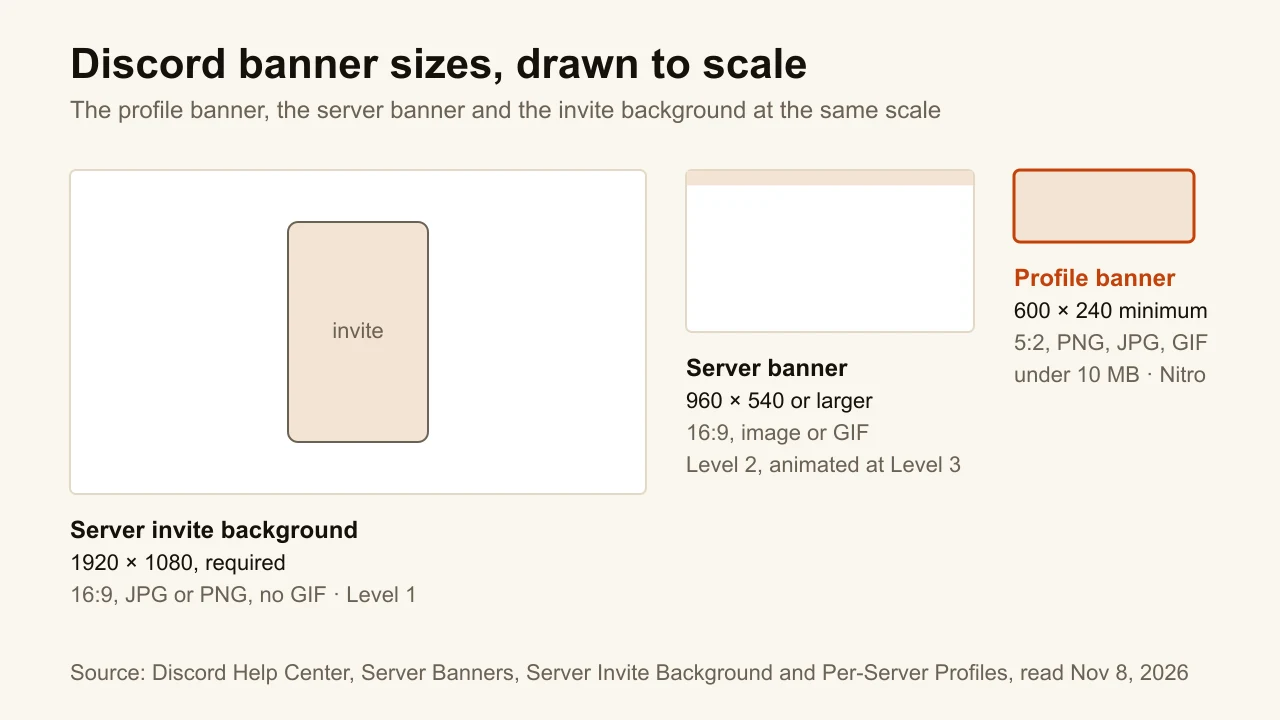
Discord publishes a minimum for the profile banner and the server banner, not a maximum. The ceiling for the profile banner is the file: 10 MB. The server banner pages give no file limit at all.
What is the Discord profile banner size?
A Discord profile banner is at least 600 × 240 pixels. Discord's Per-Server Profiles page calls it "the recommended minimum size", and its blog post Profile pointers from design pros gives the same number: "an image of at least 600x240 px as a PNG, JPG, or animated GIF under 10 MB."
Discord's own pages disagree. Per-Server Profiles and the Discord blog give a 600 × 240 minimum, and the Custom Profiles article lists "minimum dimensions of 680×240 pixels". Two help pages, two numbers. Our recommendation settles both: upload at 1200 × 480. It is larger than either minimum, and it keeps the 5:2 shape of 600 × 240, the shape to design at.
The rest of the rules:
- Nitro only. "Only Nitro members can upload an image or animated GIF as their profile banner." Without Nitro, the banner is a plain colour you pick.
- PNG, JPG or animated GIF, under 10 MB. A JPG keeps a photo-heavy 1200 × 480 banner far under the limit.
- Your avatar sits on top. Discord's blog says it plainly: "parts of your banner will be hidden by your avatar."
- A crop step on upload. After you pick the file, Discord opens a crop window. Skip crops it with the default settings, so make the image at its final shape before you upload it.
- One per server, if you like. Nitro members can set a different banner for each server they are in, with the same size and file rules.
What is the Discord server banner size?
A Discord server banner is at least 960 × 540 pixels, in 16:9. Discord's Server Banners page asks for "an image or GIF that's at least 960x540 pixels in a 16:9 aspect ratio", and adds that a 1920 × 1080 image is resized for you on upload. The animated banner uses the same size.
The banner shows at the top of the channel list. Who gets one depends on boosts, from Discord's Server Boosting FAQ:
| Boosting level | Server boosts needed | Banner perk |
|---|---|---|
| Level 1 | 2 boosts | Server invite background, no banner |
| Level 2 | 7 boosts | Static server banner |
| Level 3 | 14 boosts | Animated server banner |
A server needs 7 boosts for a static banner and 14 for an animated one.
A Discord Partner server gets the banner without boosting. A server holds one banner image at a time; if it drops from Level 3 to Level 2, the animated banner becomes a still of the same image.
The animation is shorter than most people expect. The banner plays for 5 seconds when the server loads, then pauses. It plays again when it scrolls back into view or when someone hovers over it, and not at all for anyone with reduced motion turned on. A GIF whose point arrives at second 8 never gets seen.
Where should text go on a Discord banner?
Text goes on a profile banner, in the middle. It stays off a server banner.
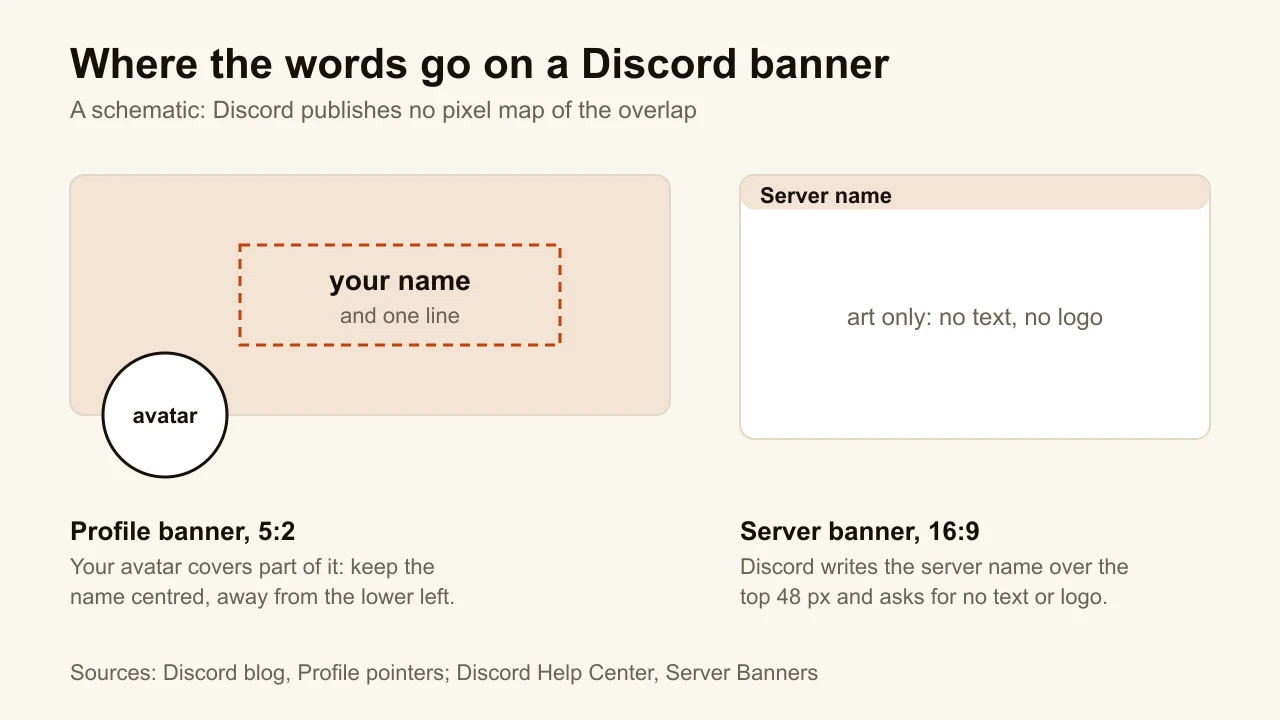
On a profile banner, your avatar sits over the lower left of the image, so anything written there disappears. A name and one line, centred, survive on every screen. A list of links or games does not: the profile card is small.
On a server banner, Discord's own guidelines ask you to "avoid uploading an image or GIF with a logo or text in it". They also ask you to keep the top 48 pixels simple, so that the server's name, shown over that strip, stays easy to read. Key art, a still of a character or a quiet background works; your logo with the server name spelled out again does not. The same advice applies to the invite background, where Discord recommends no logo or text either.
What size is the Discord server invite background?
The server invite background must be 1920 × 1080 pixels, a 16:9 JPG or PNG. Discord's Server Invite Background page calls that size "the main requirement". It can't be a GIF and it can't be edited after upload: a mistake means uploading again.
It is a Level 1 perk, two boosts. The image fills the window behind the invite, and the invite itself is an upright pop-up in the middle of it. Whatever is in the centre of your image is covered, so the interesting part of the picture belongs at the sides. Discord suggests a check: paste the invite link in a private window and look at it the way a new member will.
How do you change your Discord banner?
You change a profile banner in User Settings and a server banner in Server Settings. These are Discord's own steps, from its help pages.
Profile banner, on desktop:
- Click the cogwheel at the bottom left to open User Settings.
- Open Profiles.
- Click Change Banner and upload your image or GIF.
- Adjust the crop and click Apply, then save your changes.
For a different banner in one server, go to User Settings > Profiles > Per-server Profiles, choose the server and click Change Banner. On a phone, tap your avatar in the bottom-right corner, then Edit Profile.
Server banner: open Server Settings > Overview and scroll to the bottom, to the server banner section. Only the server owner, or members whose role has the Manage Server or Administrator permission, can upload or remove it. The invite background is on the same page, under Server Invite Background.
What is a good Discord banner size?
A good Discord profile banner size is 1200 × 480 pixels, our recommendation: 5:2, twice Discord's 600 × 240 minimum, and larger than the 680 × 240 figure. For a server banner, upload 1920 × 1080, which Discord accepts and resizes for you. Either way, make the banner at its final shape instead of cropping it afterwards. For a profile banner:
- Start at 1200 × 480. Twice the minimum, 5:2, and clear of the 680 × 240 figure.
- Centre the name. Leave the lower left for your avatar.
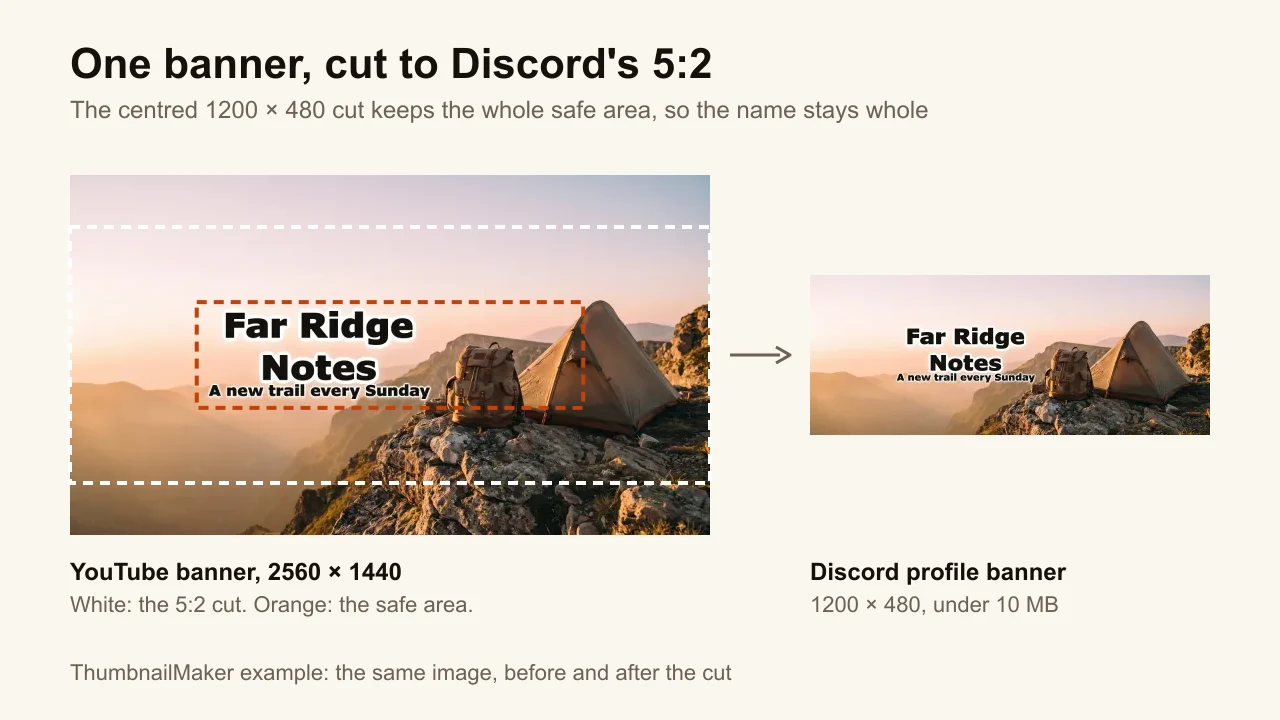
- Keep it to a name and one line. "Far Ridge Notes" and "A new trail every Sunday" read on a small card; a paragraph doesn't.
- Export a JPG for a photo, a PNG for flat colour. Both stay far under 10 MB at this size.
If you already have the image, cut it instead of redrawing it. The free Discord banner resizer crops or fits any picture to 1200 × 480 in your browser, shows the size and file weight before you download, and never uploads the file anywhere.
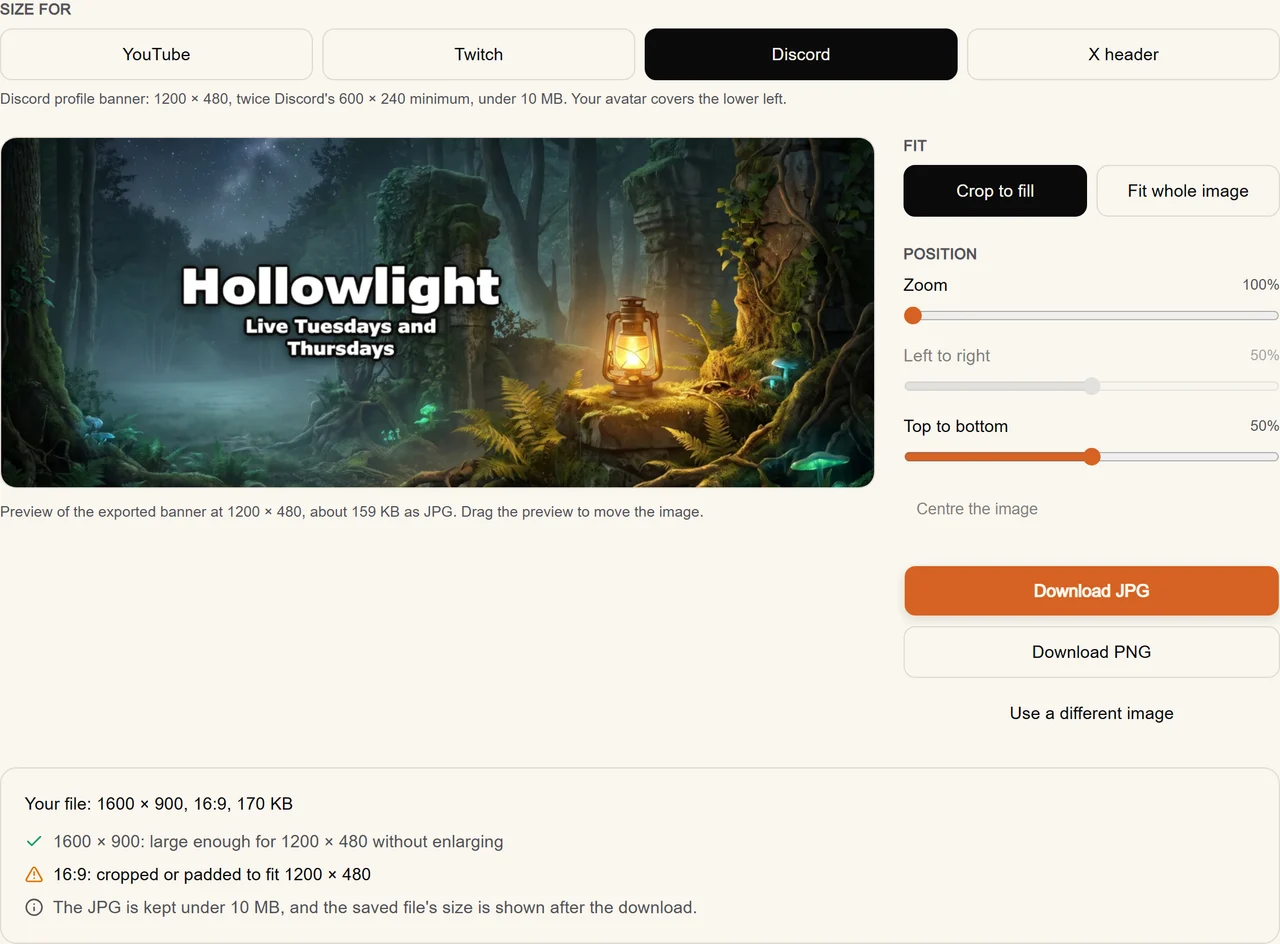
If you already have a YouTube banner, you have a Discord banner too. A YouTube banner is 2560 × 1440 with its text inside a centred safe area of about 1546 × 423, and a centred 5:2 cut of it keeps that whole area. Twitch's profile banner is also 1200 × 480, so one file covers both, and the Twitch banner maker makes that same file.
How do I make a Discord banner without designing it myself?
The size is the easy part; the picture is what people notice when they open your profile. If yours isn't made yet, ThumbnailMaker makes a Discord profile banner from your name and one line, with the words read back before you download. The same image comes out at 2560 × 1440 for YouTube, 1200 × 480 for Twitch and Discord, and 1500 × 500 for X. A new account's 3 free images can be banners; after those, a plan from $12 a month.
ThumbnailMaker is an independent product and is not affiliated with, sponsored by, or endorsed by Discord Inc. Discord and Nitro are trademarks of their owner, named here only to describe publicly documented features. Details were accurate on November 8, 2026, and may have changed since.
ThumbnailMaker Team: Guides from the people building ThumbnailMaker: thumbnail design, CTR, and what happens under the hood of an AI generator. Every number is checked against YouTube's own pages and dated.