Quick answer: a Canva YouTube thumbnail takes six steps. Search "YouTube Thumbnail" on Canva's homepage, pick a template (each opens at 1280 × 720, the 16:9 shape YouTube shows), replace the photo with your own, rewrite the words in five or fewer, check the design at the size of a phone feed, then select Share, Download, choose JPG and download. Upload the file in YouTube Studio under Thumbnail, Upload file. All of that works on Canva Free. Canva Pro, US$144 a year for one person, adds the crowned templates, the background remover most thumbnail layouts rely on, and download quality controls. Canva's strength is the start: thousands of layouts, fonts and a free AI image tool. Its limit is the rest: the templates are shared by everyone who searches the same word, and every thumbnail is a design you build by hand, every week.
If the weekly design is the part you want gone, the Canva alternative for YouTube thumbnails compares the two tools side by side: ThumbnailMaker makes the thumbnail from your video's link, on a plan from $12 a month once your first 3 free thumbnails are used.
How do you make a YouTube thumbnail in Canva?
In six steps, all of them on Canva's free plan unless a step says otherwise. They follow Canva's own pages, read on November 13, 2026: its YouTube thumbnail page, its Help Center and its templates gallery.
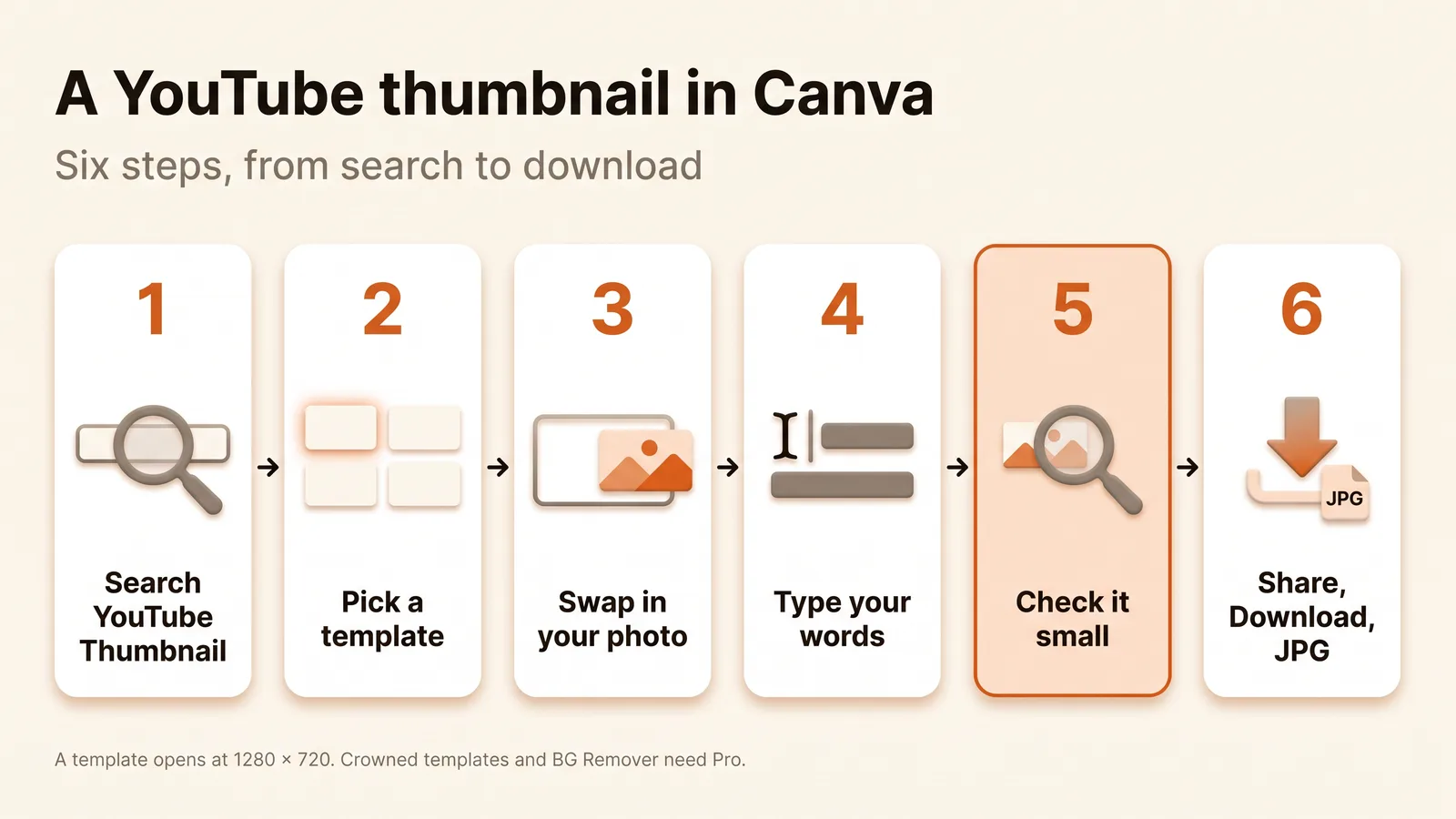
- Search "YouTube Thumbnail". On Canva's homepage, type it in the search bar. You get the design type (a blank 1280 × 720 canvas) and the template gallery. Starting blank is the better choice when you already know the layout; a template is faster when you don't.
- Pick a template. Filter by colour or style, open one, and judge it by its layout, not its photo or words, because both are about to change. Templates marked with a crown are Pro. On Canva Free you can still place them, but at download Canva asks you to buy a Pro Content License, upgrade, or take a watermarked draft.
- Swap in your photo. Open Uploads, upload a frame from your video or a photo you took for the thumbnail, and drag it onto the template's picture. A face or one object close to the camera works best. Removing the background, so the subject sits on a flat colour, is the BG Remover button in the toolbar, and it needs a paid plan.
- Type your words. Double-click the template's text and replace it. Five words or fewer, in a heavy font, large enough to fill a third of the frame. The template's words were written for someone else's video; the font and the size are usually the only parts worth keeping.
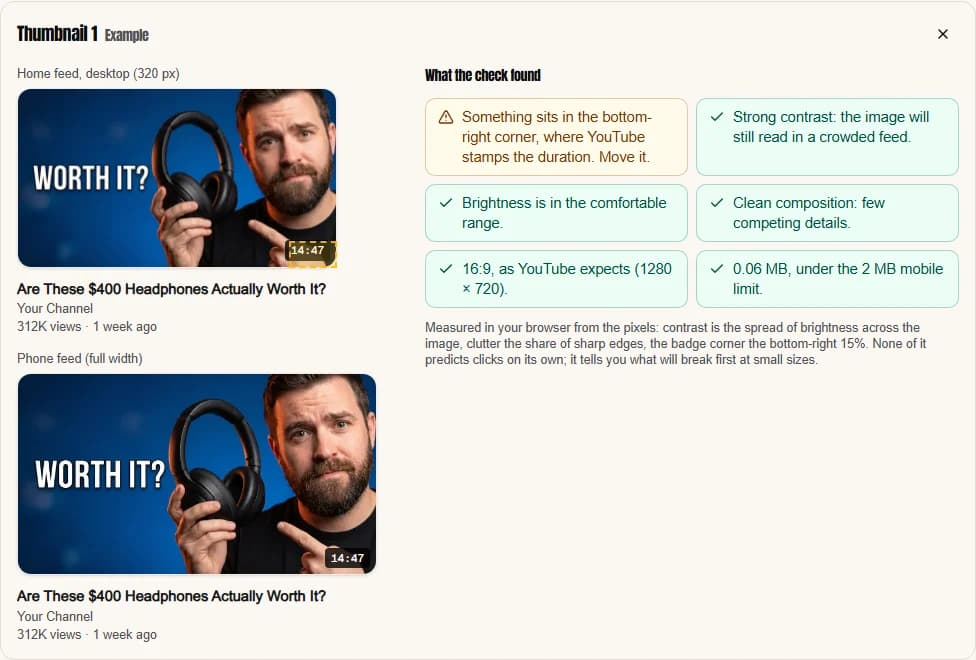
- Check it small. Zoom out until the design is about the width of your thumb on a phone screen, because that is roughly how most viewers meet it. If you cannot read the words or tell what the photo shows, neither can they. Keep the bottom-right corner clear too: YouTube prints the video's length there.
- Download it. Select Share, then Download, choose JPG under file type, and select Download. Canva's help page says JPG "provides a small file size, best for photographs", which is the right default for a thumbnail.
Then in YouTube Studio: Content, open the video, and under Thumbnail click Upload file. Our guide to changing a thumbnail covers the verified-account gate and the phone app.
What size should a Canva YouTube thumbnail be?
1280 × 720 pixels, which is what Canva's YouTube Thumbnail design type and its templates use, or 3840 × 2160 if you want the size YouTube now recommends. Both are 16:9, the only shape that matters; the 640-pixel minimum width is the only floor. To start at 3840 × 2160, select Custom size on Canva's homepage banner, set the unit to px and type the width and height. Canva's help page accepts anything from 40 to 8,000 pixels a side, so 3840 × 2160 fits.
One number on Canva's page is out of date. Its FAQ still says a YouTube thumbnail should stay under 2 MB. YouTube's Help page now accepts 50 MB from a computer, and keeps 2 MB only for a video thumbnail uploaded from the phone app. A 1280 × 720 JPG from Canva is far below either. The file-size problem only shows up when you export a 3840 × 2160 design as PNG and upload it from a phone.
If the file you have is the wrong shape or too heavy, the free YouTube thumbnail resizer re-exports it at 1280 × 720 or 3840 × 2160 and checks the width, the shape and the phone limit in your browser, with no account.
What does Canva do well for thumbnails?
Canva does three things well for a YouTube thumbnail: it removes the blank page, it is free for most of the job, and it keeps your brand next to everything else you design.
The blank page problem disappears. Canva's thumbnail page claims "1M+ professionally-designed templates", and its pricing page lists 1.6 million or more on the free plan. For a first thumbnail, starting from a layout someone already balanced is faster than any amount of advice about the rule of thirds.
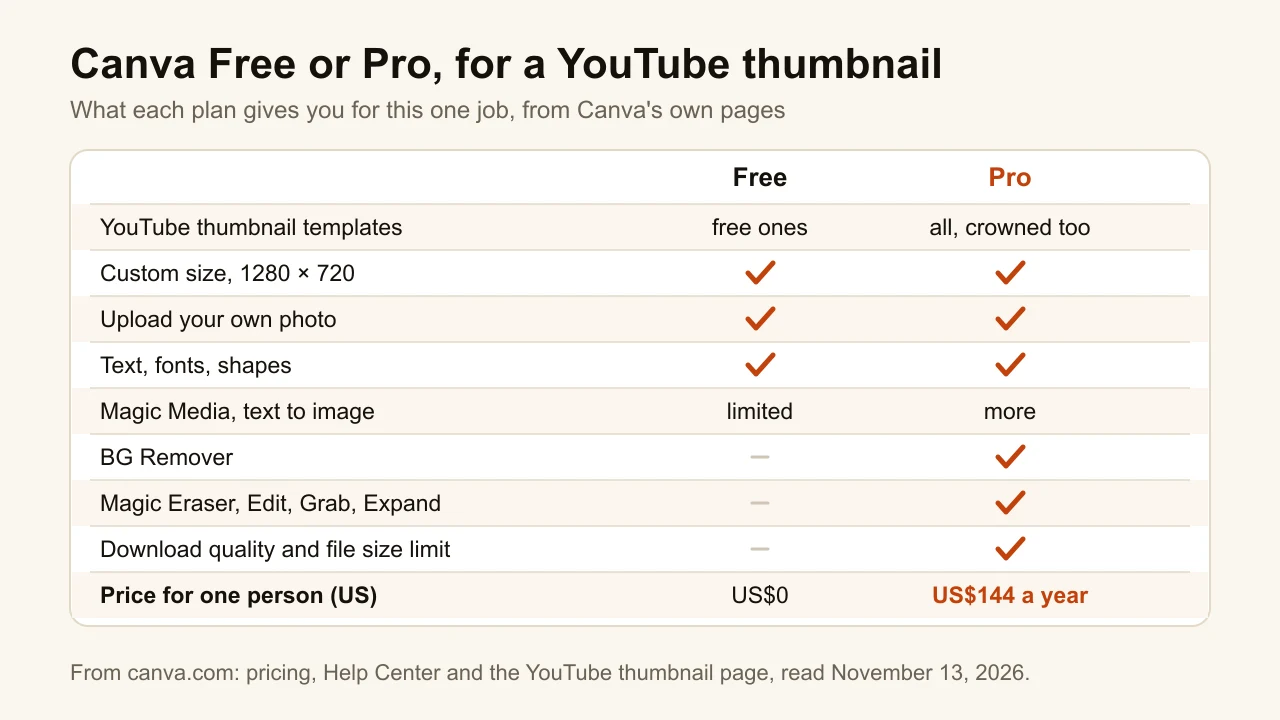
It is free for the parts most people use. Templates without a crown, uploads, text, fonts, shapes, the custom 1280 × 720 canvas and JPG or PNG download all work on Canva Free. Magic Media, Canva's text-to-image tool, is marked free on its YouTube thumbnail page, within the free plan's AI allowance.
It sits next to everything else you make. If you already design your channel banner, your Instagram posts and your merch in Canva, your fonts and colours live there. The free plan includes one Brand Kit with three colours; Pro has five.
| For a thumbnail | Canva Free | Canva Pro |
|---|---|---|
| YouTube thumbnail templates | Free ones; crowned ones watermarked | All |
| 1280 × 720 canvas, uploads, text, JPG download | Yes | Yes |
| Magic Media (text to image) | Within the free AI allowance | More AI allowance |
| BG Remover, Magic Eraser, Edit, Grab, Expand | No | Yes |
| Download quality and file size limit | No | Yes |
| Price for one person (US) | US$0 | US$144 a year |
Where does Canva stop?
Canva stops helping at the point where a YouTube thumbnail stops being a design and becomes a weekly job: four limits show up there.
The templates look alike, because everyone uses them. When we opened Canva's public YouTube thumbnail gallery on November 13, 2026, its first twenty tiles held two different templates both reading "THEY NEVER TOLD YOU" and two more built around the word "UNTOLD". Every channel that searches the same word sees the same gallery, so the layout that caught your eye has already caught theirs. In a feed where a viewer decides in a glance, a thumbnail that looks like another channel's is spending its one advantage on someone else.
You design every one, by hand. A template gives you a layout. It does not know what your video is about, which moment is the thumbnail, or which five words say it. That part, the brief, is most of the work, and Canva leaves all of it to you every time you publish.
Nothing checks the result at feed size. Canva shows the design at whatever zoom you set. It does not show it at 336 pixels wide in a home feed, next to a title and a duration badge, which is where it either earns the click or doesn't. The free YouTube thumbnail tester does: drop the Canva export in and see it in a mock home feed, on a phone, and next to up to two other versions.
The cut-out costs extra. The typical thumbnail layout, a person cut out against a bold colour with big words beside them, needs the background removed. In Canva that is BG Remover, and its help page says it is "included with paid plans".
Can you make a YouTube thumbnail without designing it?
Yes: ThumbnailMaker makes a YouTube thumbnail from your video's link, with no template and no layout to build. It starts where Canva leaves off. Paste the video's link and it writes the brief (three angles, each with a scene, the words and a style), then draws the thumbnail with the words in the image, reads them back, redraws them once if a letter is wrong, and checks the result at the size YouTube's feed shows it, with the badge corner kept clear. If something is off, type it under "What should we fix?" and click Correct.
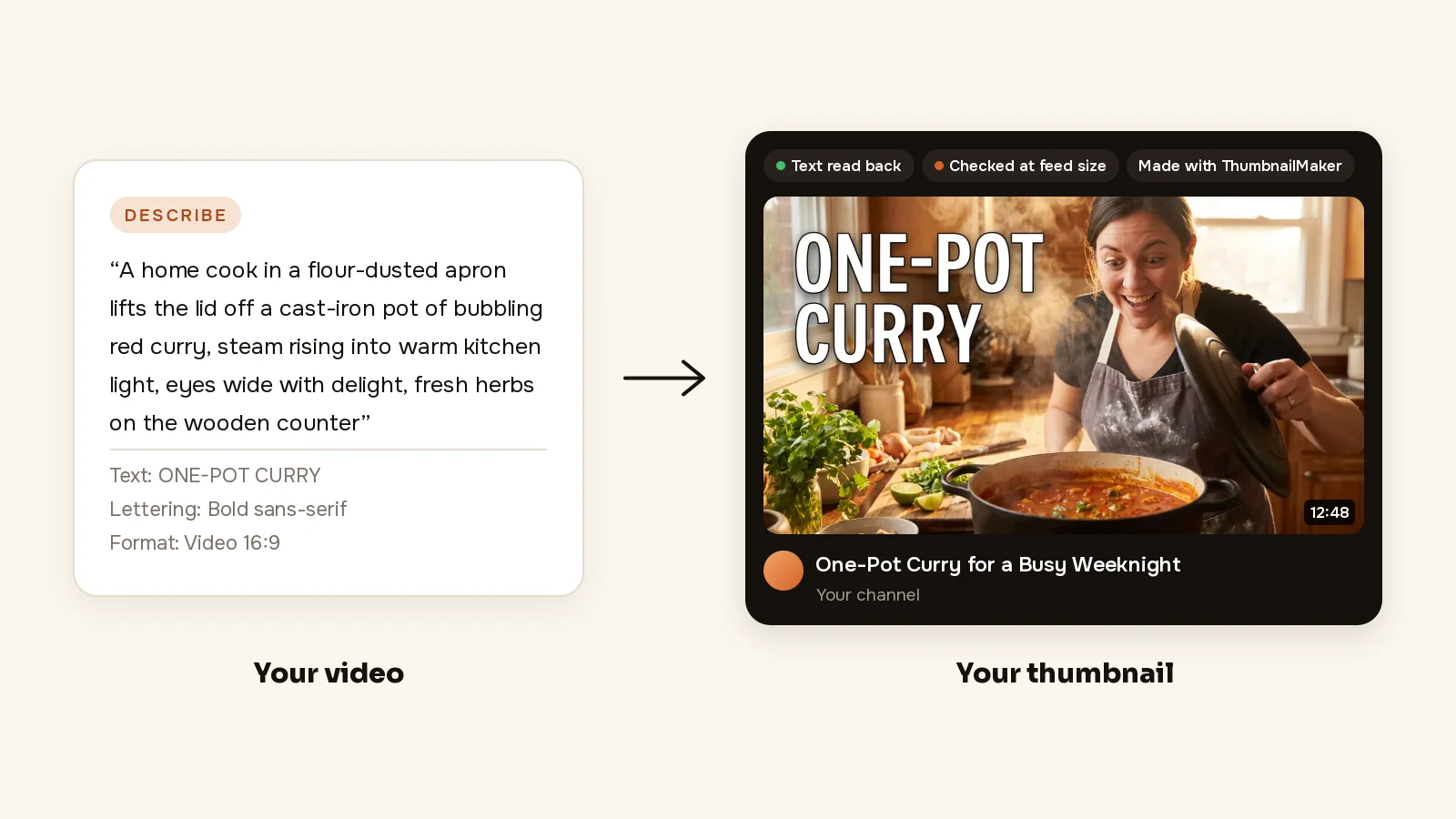
Your first 3 thumbnails are free, with no card, and writing the brief from your video's link is free too; after those, plans start at $12 a month for 40 thumbnails. The comparison of seven tools that do this job differently, from Adobe Express to Photopea, is in Canva alternatives for YouTube thumbnails. If what you like about Canva is starting from a look, ThumbnailMaker's YouTube thumbnail templates are 14 styles that set the look and leave the layout to your video.
Canva or a thumbnail maker: which should you use?
Use Canva if you publish now and then, enjoy designing, and already keep your brand there. A template plus your own photo is a perfectly good thumbnail, as long as you rewrite the words and check it small.
Use a thumbnail maker if you publish every week and the thumbnail is the step you put off. The time in Canva goes into the brief and the layout, and those are exactly the parts a tool built for thumbnails writes from the video. The AI thumbnail maker shows how that works, the side-by-side with Canva covers price and workflow, and the plans start at $12 a month after the free three.
Sources
Canva facts were checked on Canva's own pages on November 13, 2026: pricing, the YouTube thumbnail page, the templates gallery, and the Help Center pages on downloading, download file types, background removal and designing from scratch. Prices vary by country; the US$144 is Canva's US price for one person, billed yearly. YouTube's thumbnail limits are from YouTube Help.
ThumbnailMaker is an independent product and is not affiliated with, sponsored by, or endorsed by Canva. Canva is a trademark of Canva Pty Ltd, named here only to describe publicly documented features.
ThumbnailMaker Team: Guides from the people building ThumbnailMaker: thumbnail design, CTR, and what happens under the hood of an AI generator. Every number is checked against YouTube's own pages and dated.